
Introduction
Losing a TV remote can throw a wrench into your relaxation time when all you want is to unwind with your favorite show. Luckily, there are several ways to regain control of your viewing experience even without a remote in hand. In this guide, we’ll explore a variety of practical solutions, from using the physical buttons on your TV to advanced methods involving smartphones and smart home devices.

Using Physical Buttons on Your TV
Most televisions come equipped with a set of basic physical buttons. These buttons are often located on the side or bottom of the TV frame, and they are invaluable tools for manually operating your set:
- Locate the Power Button: Check your TV manual for details, or look for the standard button symbols directly on your TV.
- Navigate with Menu Buttons: Use available volume and channel buttons to access and control menu options.
- Switch Input Sources: If you need to change inputs, look for the ‘Input’ or ‘Source’ button.
These physical controls offer a straightforward solution and are often the quickest way to resume your entertainment without additional devices.
Turning Your Smartphone into a Remote Control
Next, let’s leverage technology to transform your smartphone into a remote control. This option not only compensates for the missing remote but also enhances your control experience:
Top Remote Apps for Smartphones
- Peel Smart Remote: Works with most TV brands and IR-enabled devices.
- AnyMote: Offers advanced features for Android users.
- Roku App: Specifically designed for Roku devices.
Step-by-Step Setup Guide
- Download the App: Access your smartphone’s app store and search for relevant remote control apps.
- Connect to Same Wi-Fi: Ensure both your smartphone and your TV are connected to the same Wi-Fi network.
- Pair with TV: Follow the on-screen instructions provided by the app to pair it with your television.
Utilizing your smartphone as a remote provides convenience and can offer additional features like voice control and easy navigation, combining functionality with user-friendly interfaces.
Leveraging Smart Home Devices
Adding to the technological conveniences, smart home devices such as Amazon Alexa or Google Home can also serve as effective substitutes for your TV remote. This approach allows you to control your TV with voice commands, making everyday tasks more accessible than ever:
Using Voice Assistants
- Enable TV Skills: Access your smart assistant’s app to enable TV control skills.
- Link Your TV: Use the app to pair your smart assistant with your TV following the instructions.
- Voice Control: Issue commands like ‘Alexa, turn on the TV’ or ‘Hey Google, switch to channel 5.
Integrating with Smart Home Systems
Enhance your smart home ecosystem with seamless TV operations:
– Set Custom Automations: Program specific times for your TV to turn on or off.
– Create Entertainment Scenes: Link your TV to lights, sound systems, or other smart devices for an immersive experience.
Integrating your television into a smart home network allows for comprehensive control, streamlining your household devices into one cohesive system.
Utilizing HDMI-CEC Technology
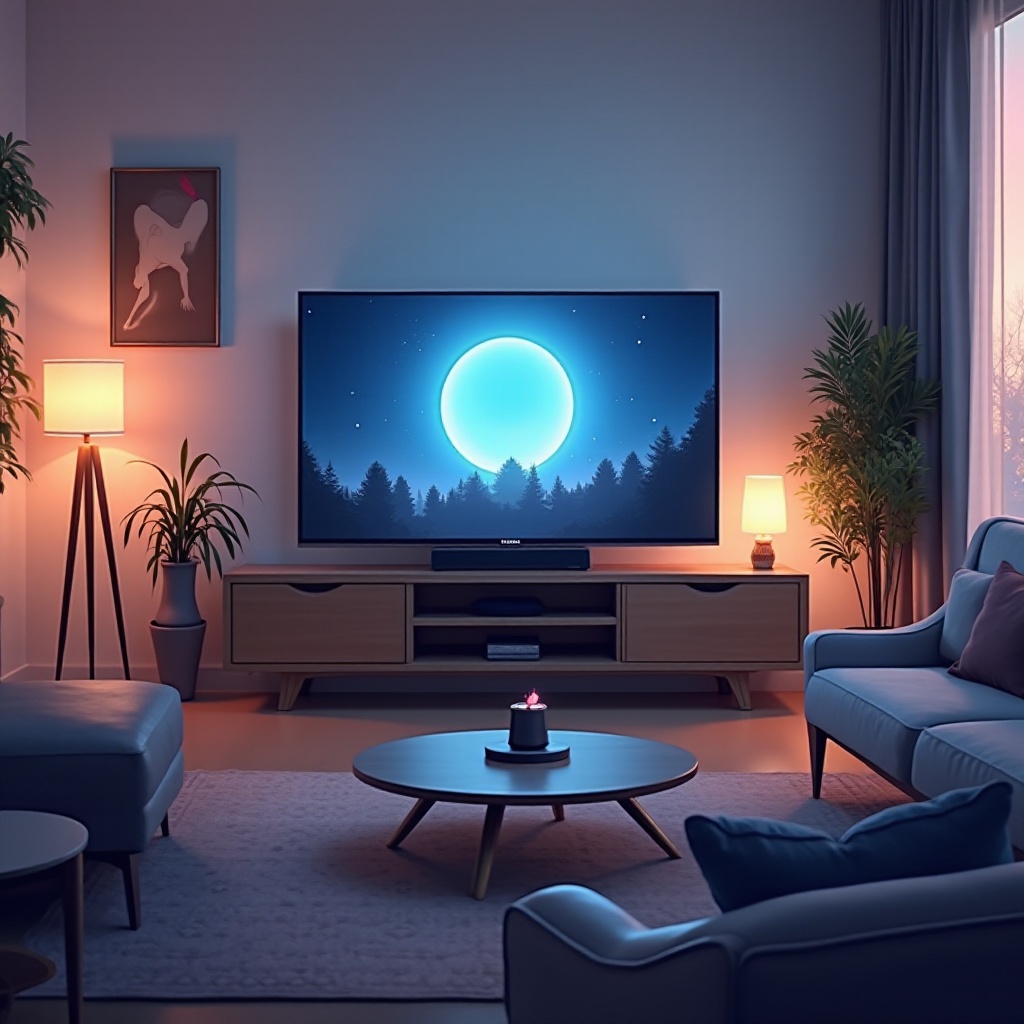
If you’re looking to simplify the remote clutter in your home, HDMI Consumer Electronics Control (CEC) technology is your answer. This feature, available on many modern TVs, allows for consolidated control through a single device:
What is HDMI-CEC?
- Explanation: HDMI-CEC enables interoperable command via HDMI connections, allowing control over multiple connected devices with one remote or device.
- Benefits: It provides a universal solution to device management, reducing the need for multiple remote controls.
How to Enable HDMI-CEC on Your TV
- Check Device Compatibility: Verify that both your TV and any connected devices support HDMI-CEC.
- Navigate TV Settings: Enter the settings menu on your TV to look for CEC configurations.
- Activate HDMI-CEC: Turn on the setting typically labeled as ‘CEC,’ ‘HDMI Control,’ or a similar variant.
Utilizing HDMI-CEC streamlines device operation and enhances entertainment system integration, reducing the complexity of multiple remotes and controls.
Emergency Solutions and Quick Fixes
Finally, let’s review some immediate fixes when all else seems out of reach. Whether you’re without app access or a smart device, these handy tips can help:
Community-Suggested Methods
- Universal Remotes: Consider buying a basic universal remote for controlling various devices quickly and efficiently.
- Borrow a Remote: Check if a friend or neighbor with a similar TV model can lend you a remote temporarily.
When No Other Device is Available
- Use TV Buttons: As a last resort, rely on the physical buttons on your TV for basic operations.
- Manual Input Adjustments: Physically switch input sources using available buttons if connected to external devices.
These temporary solutions can tide you over until you find a more permanent resolution, ensuring that a misplaced remote doesn’t disrupt your relaxation time.
Conclusion
There’s no need to let a lost remote control hinder your TV experience when there are multiple effective solutions available at your fingertips. From conventional methods such as physical buttons to high-tech fixes like smartphone apps and HDMI-CEC, each method delivers convenience tailored to your needs and technological setup. Now you can enjoy your favorite shows and movies uninterrupted, even without your remote in hand.
Frequently Asked Questions
Can I use my gaming console to control my TV?
Yes, many gaming consoles, like Xbox and PlayStation, offer apps that allow basic control over TV functions, provided they are connected via HDMI.
What if my TV doesn’t have physical buttons?
In rare cases where TVs lack visible buttons, relying on smartphone apps or smart-home devices becomes essential for control.
Are universal remotes a good investment for TV control?
Universal remotes are an excellent investment if you frequently lose your primary remote, as they can be programmed to manage multiple devices.