
Introduction
The Steam Deck is a revolutionary handheld gaming device offering an unparalleled gaming experience. Yet, users occasionally face issues like the device not recognizing SD cards, which can be frustrating. This guide provides step-by-step solutions to troubleshoot and resolve these issues, ensuring uninterrupted gaming enjoyment.
Understanding SD Card Recognition Problems
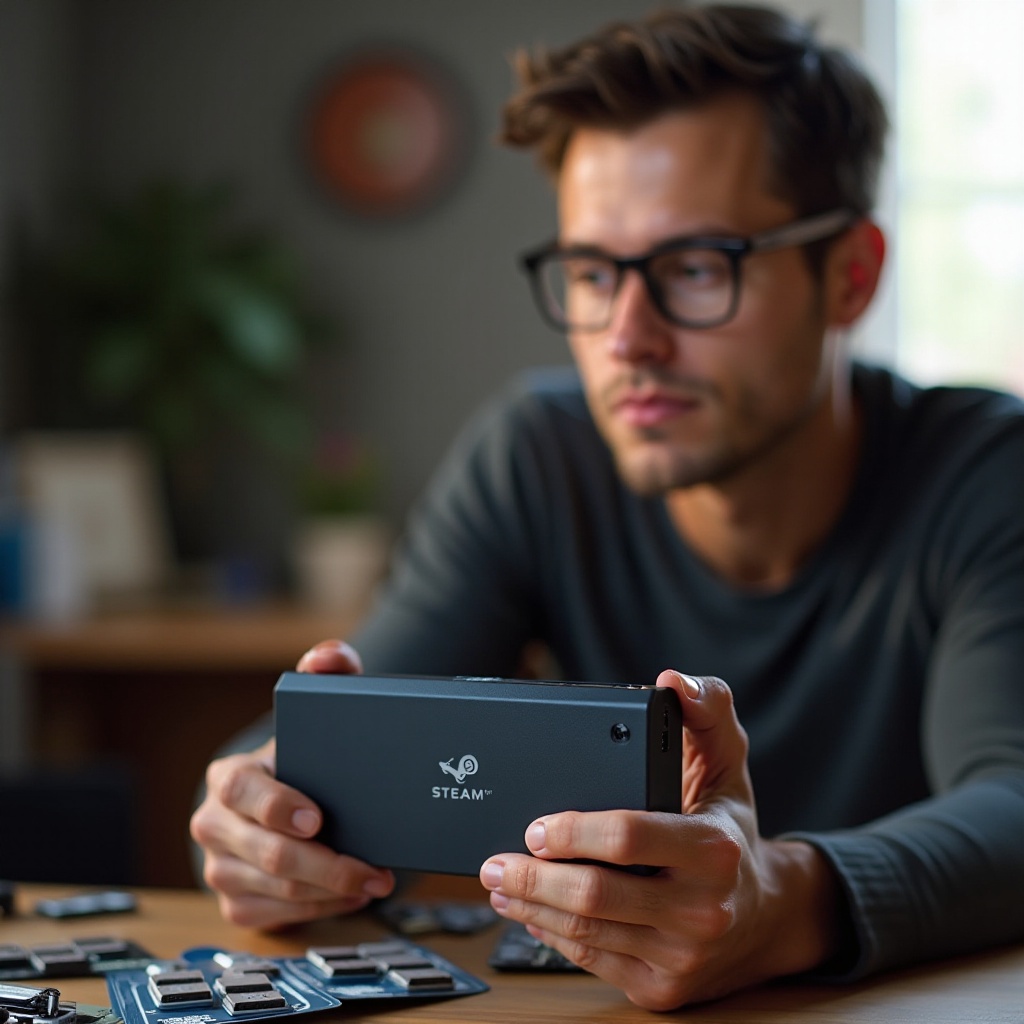
Before we explore solutions, it’s important to understand the problem. SD card recognition issues on the Steam Deck may arise from software glitches, hardware malfunctions, or compatibility problems. Common symptoms include the device failing to detect the card or displaying read/write errors.
Once you are aware of these symptoms, pinpointing the cause becomes simpler, guiding us toward effective steps.
Initial Troubleshooting Steps
Let’s begin with some foundational checks to resolve these issues:
- Check SD Card Compatibility: Make sure the SD card adheres to the Steam Deck’s specifications in terms of speed and storage capacity.
- Ensure Secure Connections: Confirm that the SD card is firmly and correctly inserted, producing a secure ‘click’.
These initial steps can often solve minor issues. If the problem persists, the next section will examine software solutions.

Software Solutions for SD Card Issues
If your SD card issues continue, software-based solutions might be needed:
- Update SteamOS and Firmware: Keeping the Steam Deck’s system up to date can solve numerous software bugs. Navigate to Settings, access System, and check for any available updates.
- Reformat the SD Card: Connect your SD card to a computer, back up all important data, and reformat the card to FAT32 or exFAT format, since these are compatible with the Steam Deck.
Employing these software fixes might restore normal function. Should issues still occur, it may indicate a hardware problem.
Hardware-Based Troubleshooting
Hardware issues require a more detailed approach. Here are steps to diagnose and fix potential hardware problems:
- Inspect the SD Card Slot: Examine the slot for any dust or physical damage that might hinder its performance.
- Test with Alternative SD Cards: Try using a different SD card to ascertain whether the fault lies with the card or the device itself.
Addressing hardware issues may take more effort but is essential for smooth operations. To explore more severe problems, advanced troubleshooting may be necessary.
Advanced Troubleshooting Techniques
Advanced users might need to explore deeper issues:
- Analyze System Errors and Logs: Delve into console settings to examine error messages and logs triggered when trying to read SD cards.
- Contact Steam Support: If previous attempts fail, contacting professional support can offer specialized advice tailored to your device’s needs.
These advanced techniques can uncover complex challenges, paving the way for professional resolution.
Preventative Measures for Future Issues
Ensuring the longevity of your Steam Deck and SD cards is essential to avoid future glitches:
- Maintain Your SD Card’s Health: Handle the card carefully, store it securely, and use reliable card readers.
- Choose Reliable SD Card Brands: Opt for high-quality cards from reputable brands like SanDisk or Samsung to ensure durability and consistent performance.
By implementing these preventative steps, you can enhance your Steam Deck’s performance and reliability.
Conclusion
Through careful troubleshooting and understanding potential problems, you can solve SD card recognition issues on your Steam Deck. By tackling both software and hardware causes, you ensure your gaming adventures remain free of interruptions.
Frequently Asked Questions
Why is my Steam Deck not reading my SD card?
Your Steam Deck may not read the SD card due to compatibility issues, outdated software, or a faulty SD card slot. Ensure the card is compatible and check for updates.
How can I format my SD card for the Steam Deck?
To format your SD card, connect it to a PC, back up any essential data, and format it to FAT32 or exFAT using the computer’s formatting tool.
What SD card types are best for the Steam Deck?
Opt for reliable brands known for quality, such as SanDisk or Samsung, and ensure the card meets the Steam Deck’s speed and capacity specifications.