
Introduction
Experiencing issues with a PS4 controller that refuses to charge but operates when plugged in can frustrate any gamer. This obstacle not only disrupts your gaming experience but highlights potential technical problems that need addressing. The purpose of this guide is to offer essential steps to understand, identify, and resolve this charging dilemma. From trying different cables to checking for hardware issues, we cover everything you need to know to restore your controller’s functionality.
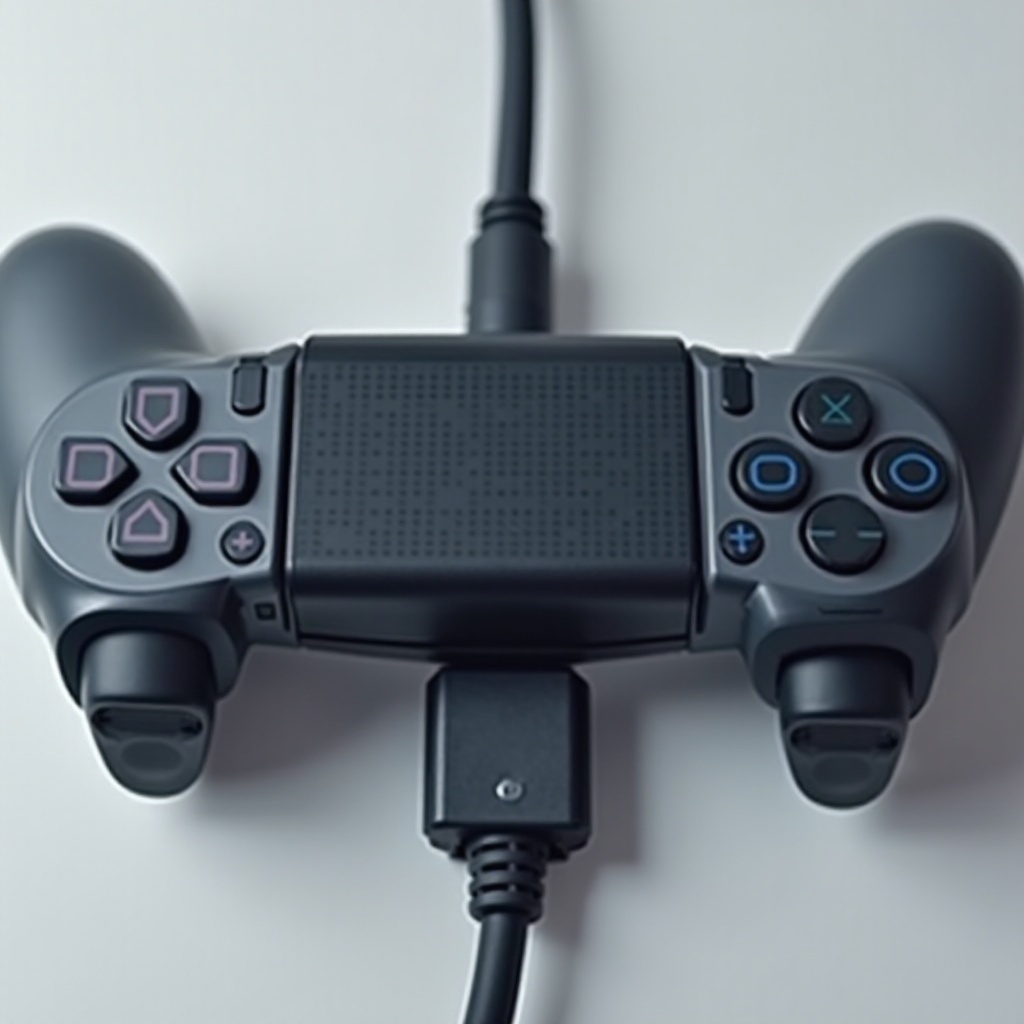
Understanding the Charging Issue
Before delving into solutions, comprehending the root causes of this problem is essential. Generally, a PS4 controller charges via a micro USB connection to the console or other power sources. Despite this, various factors might prevent efficient charging while allowing it to function when plugged in:
- Faulty USB Cable: A damaged or incompatible cable might deliver mere operational power without charging the controller.
- Defective Charging Port: Debris or damage within the port can inhibit the charging process.
- Battery Issues: Over time, the battery can become inefficient or completely inoperative.
- Software Glitches: Firmware issues might disrupt charging capabilities.
Recognizing these culprits will ease the troubleshooting process significantly as you embark on finding a solution.
Initial Troubleshooting Steps
To identify and possibly rectify the charging issue, begin with these basic troubleshooting methods:
- Checking the USB Cable: Try using an alternative USB cable, ideally the original provided by PS4. Avoid cheap substitutes that might deliver insufficient power.
- Inspecting the Charging Port: Examine the controller’s charging port for dust or damage. Carefully use compressed air to clear any obstructions.
- Trying Multiple Power Sources: Connect the controller to various PS4 ports or a computer. Consider using a quality wall adapter to eliminate power source variables.
Despite these efforts, if the problem persists, it’s time to delve deeper into advanced troubleshooting in search of a lasting fix.
Advanced Troubleshooting Techniques
Should basic troubleshooting fall short, engage in these advanced methods for more comprehensive diagnoses and repairs:
- Resetting the PS4 Controller: Utilize a small pin to press the reset button found at the back of your controller, then reconnect it to the PS4 to test charging functionality.
- Updating Controller Firmware: Verify your controller’s firmware is up to date. Updates can often resolve bugs and restore charging capabilities. Connect the controller to the console, access settings, and check for updates.
- Internal Connectivity Issues: If comfortable with electronics, inspect the internal components for loose wires or faulty connections. This is often better left to professionals for a thorough examination.
These endeavours of technical exploration should rejuvenate your controller’s charging function; otherwise, consider more substantial repairs or replacements.
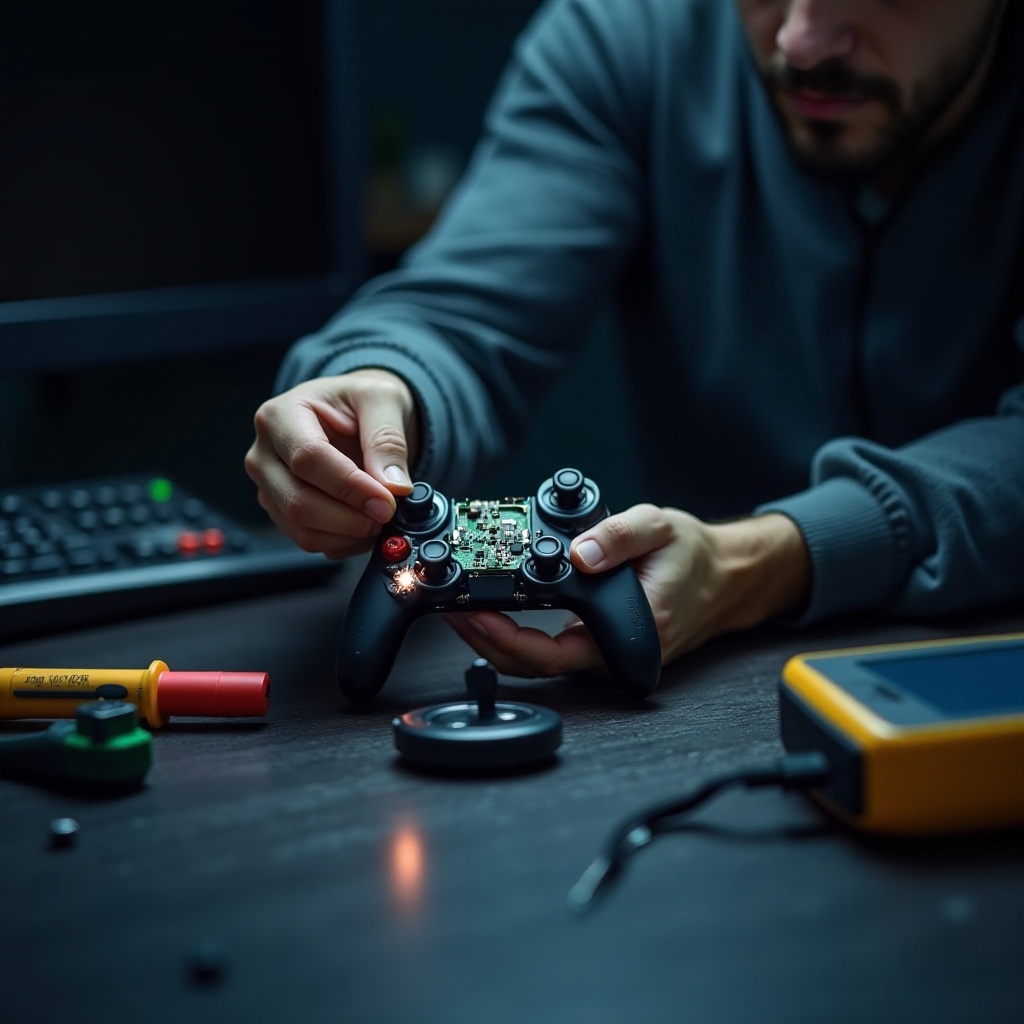
Permanent Solutions and Repairs
If temporary fixes are unsatisfactory, consider these reliable solutions for a permanent resolution:
- Replacing the Battery: Prolonged use degrades batteries. If the battery is old or malfunctioning, replace it with a compatible alternative from a trusted provider.
- Using Third-party Charging Docks: Such docks offer dependable charging over cables. Invest in a reputable dock for secure charging, ensuring longevity and safety.
- Seeking Professional Help: As a last resort, explore repair services for persistent issues. Reach out to Sony support or certified technicians to rectify hardware malfunctions.
Implementing these strategies will likely eradicate issues and prevent future occurrences, ensuring a consistently reliable controller.
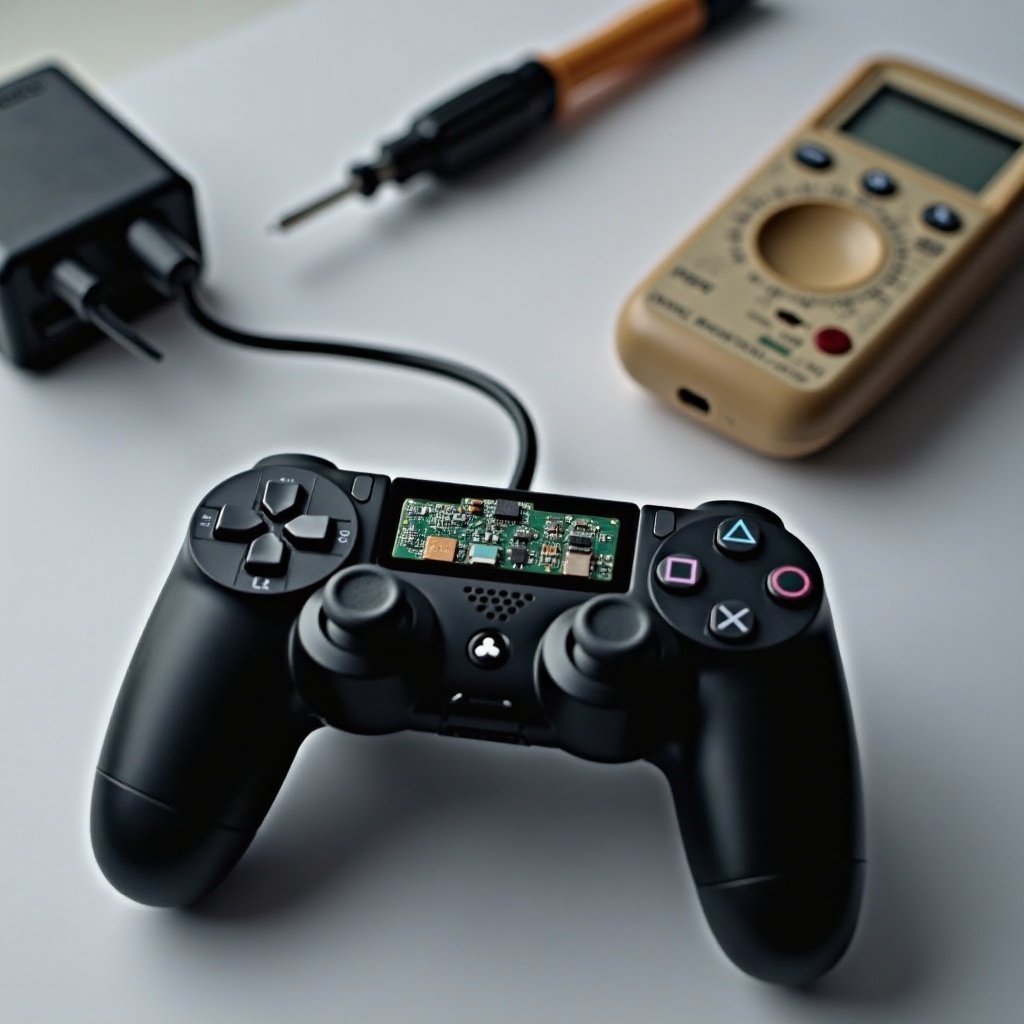
Tips for Prevention and Maintenance
Regular care and upkeep can significantly prolong your controller’s life and avert charging problems:
-
Proper Maintenance of the Charging Port: Maintain cleanliness and keep the port free of dust. Gentle, routine cleaning using a soft brush or compressed air prevents impurities that obstruct charging.
-
Regular Software Updates: Maintain the latest updates on your PS4 system and controller firmware to avoid software-related problems. Enable automatic updates to ensure all components remain current.
Adopting these preventive habits will safeguard your controller’s integrity, offering seamless gaming experiences over time.
Conclusion
Overcoming the challenge of a PS4 controller that won’t charge yet works while plugged in is achievable with a systematic approach. Understanding potential causes and following structured troubleshooting procedures can efficiently resolve this issue. Depending on the severity, whether it involves replacing parts or professional repairs, addressing these concerns can optimize your controller’s performance and extend its usability.
Frequently Asked Questions
Why does my PS4 controller only charge when plugged in?
This issue often stems from problems like a faulty USB connection, damaged battery, or debris blocking the charging port.
How can I tell if my PS4 controller battery is dead?
If your controller doesn’t hold a charge and shuts down once unplugged, it likely indicates the battery needs replacement.
Is it better to charge a PS4 controller with a wall adapter or a console?
Charging through the console is optimal as it offers a steady charge tailored for the controller, though quality wall adapters can also be viable.