
Introduction
Replacing the battery in your Samsung Galaxy tablet can bring back its optimal functionality. Over time, batteries lose their ability to hold charge, resulting in reduced performance. This guide outlines the necessary signs, tools, and steps to effectively replace your tablet’s battery and extend its lifespan.
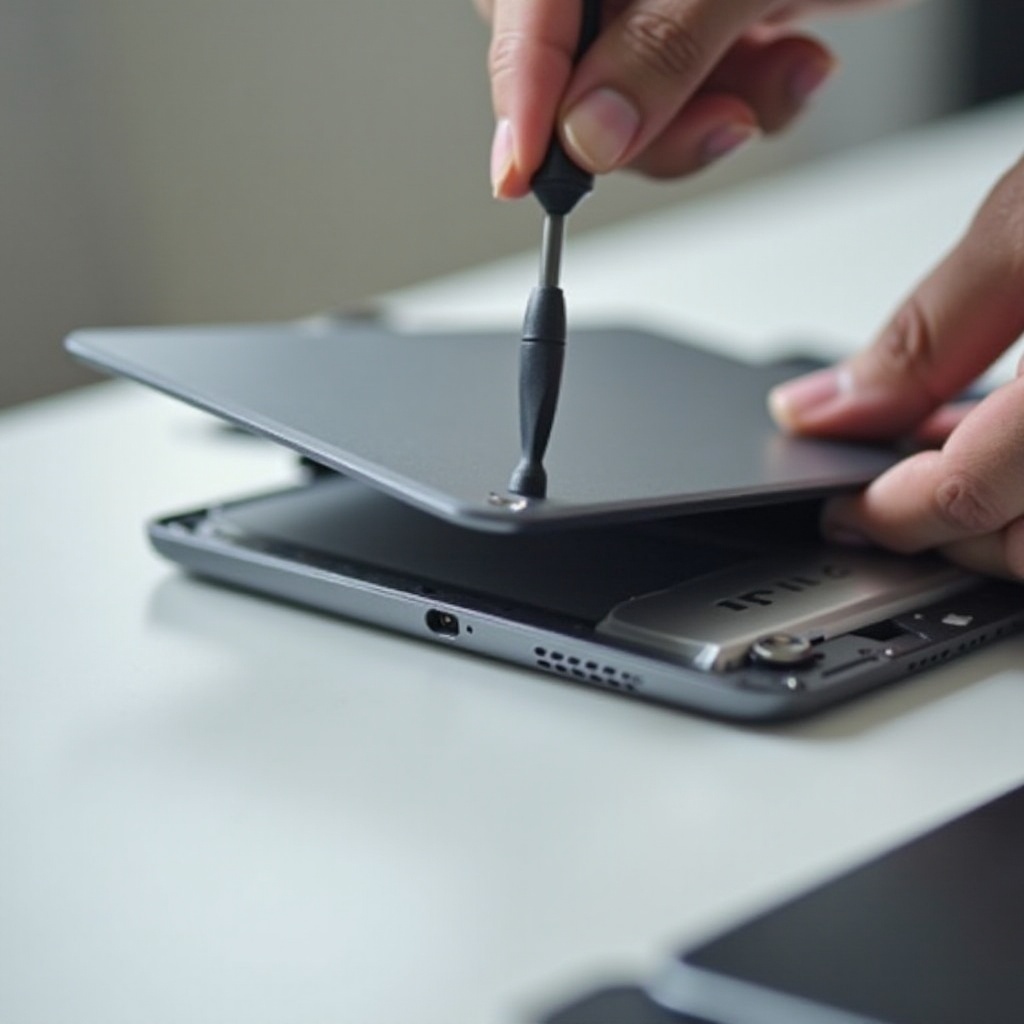
Signs That Your Samsung Galaxy Tablet Battery Needs Replacement
Recognizing battery issues early can prevent sudden breakdowns. Look for these warning signs:
- Battery Not Holding Charge: If your battery depletes quickly even with minimal use, it may be time for a change.
- Device Overheating: Consistent overheating during regular usage can indicate battery problems.
- Sudden Shutdowns: Random shutdowns despite a charged battery signal a possible battery issue.
Acknowledging these indicators can help you decide when it’s time to replace the battery, preparing you for the next steps in the replacement process.
Tools and Materials Needed for Battery Replacement
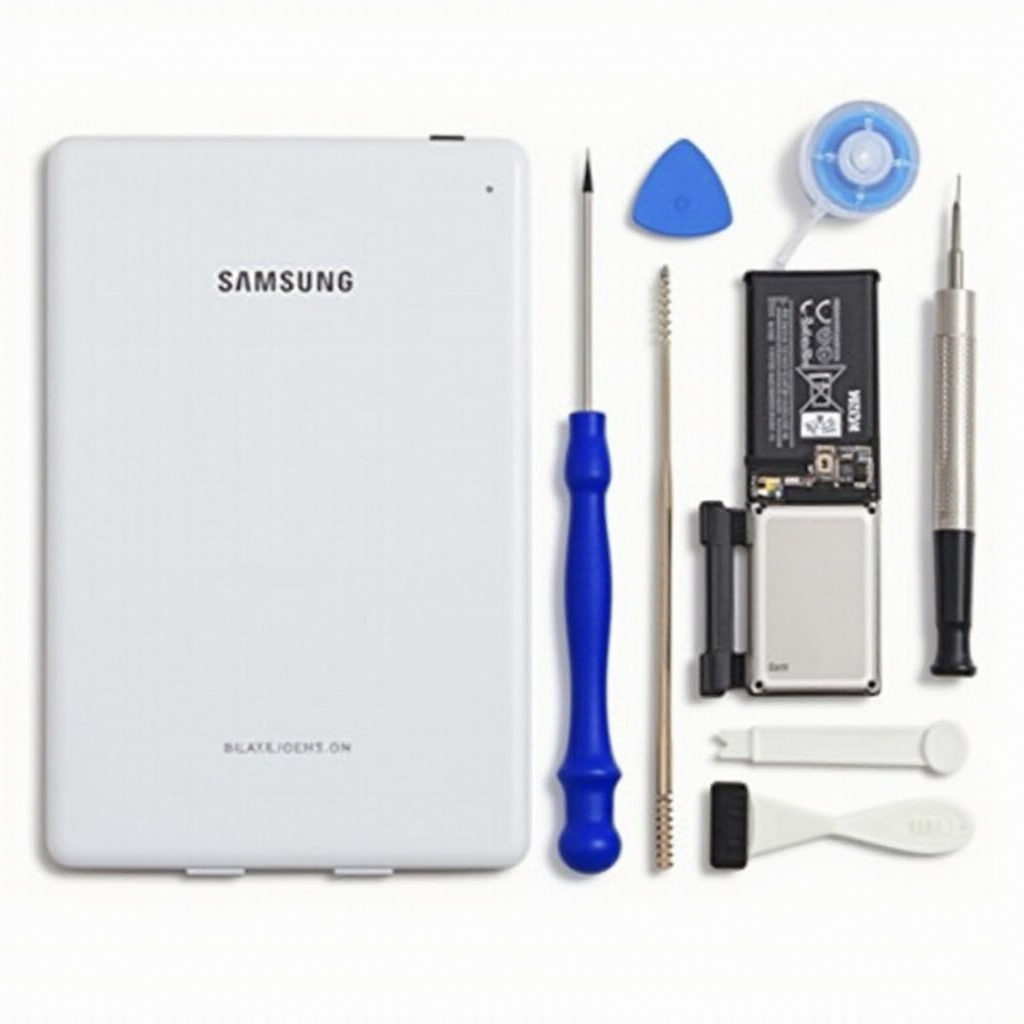
Equipping yourself with the right tools ensures a smooth replacement procedure:
- Essential Tools: Phillips and flathead screwdrivers, plastic opening tools, tweezers
- Safety Equipment: Anti-static wrist strap, clean workspace
With these items ready, you’re poised to carry out the battery replacement efficiently and safely.
Preparing Your Samsung Tablet for Battery Replacement
Proper preparation is crucial for a seamless battery replacement. Make sure to:
- Back Up Data: Securely back up all critical files using cloud services or external storage.
- Power Down the Device: Ensure the tablet is completely off, preventing any electrical mishaps.
- Remove External Accessories: Detach cases, screen protectors, and other peripherals for unimpeded access.
Once your tablet is prepared, you’ll be ready to begin the actual replacement process without interruptions.
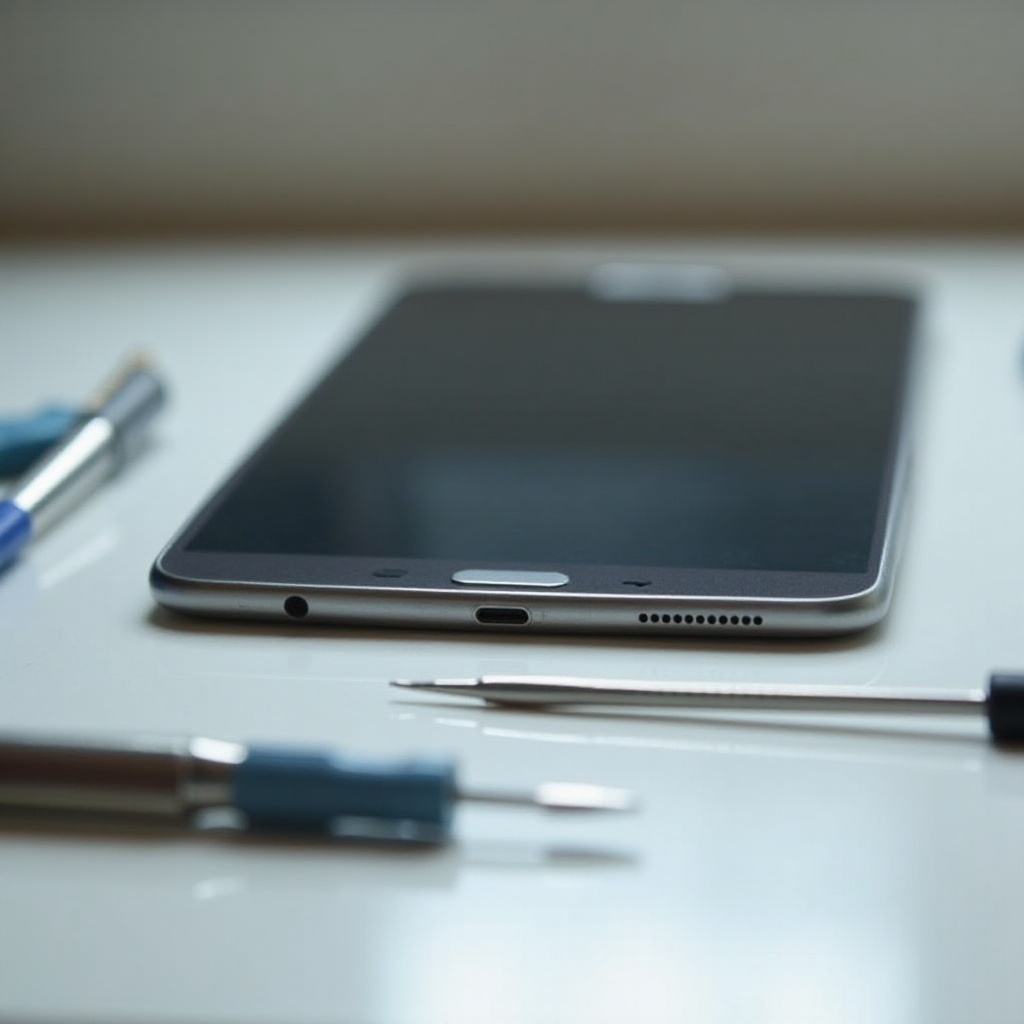
Step-by-Step Guide to Replacing Your Tablet Battery
Navigate the replacement process with ease by adhering to these detailed steps:
- Opening the Tablet Case
- Employ the plastic opening tools to carefully pry open the tablet’s case.
-
Gently work around the edges until the back panel separates smoothly.
-
Disconnecting the Old Battery
- Locate and disconnect the battery cable using tweezers.
-
Remove securing screws with a Phillips screwdriver.
-
Installing the New Battery
- Position the new battery correctly. Secure with screws and reconnect the cable to the motherboard.
- Ensure the back panel snaps firmly into place.
With these steps, your new battery should function smoothly, reviving your tablet’s performance and durability.
Testing and Calibrating the New Battery
It’s essential to verify the new battery’s functionality:
- Performing Initial Tests: Power on the tablet to ensure normal startup and check the battery status.
- Battery Calibration Tips: Drain the battery to 10% and then charge it uninterrupted to 100% to calibrate accurately.
These steps help establish the battery’s true capacity, promoting optimal performance.
Tips for Extending Your New Battery’s Lifespan
Proper maintenance extends the life of your newly installed battery:
- Proper Charging Habits: Avoid deep discharges; keep charges between 20% and 80%.
- Software Updates and Settings: Regularly update software and tweak settings to conserve energy, like reducing screen brightness.
By adopting these habits, your tablet’s improved battery performance will be sustainable over the long term.
Conclusion
Replacing your Samsung Galaxy tablet’s battery is a practical and efficient way to extend its life. With careful attention to the outlined steps and continuous maintenance, you can ensure reliable and enhanced performance. Let your tablet serve you well beyond expectations.
Frequently Asked Questions
How Often Should I Replace My Tablet’s Battery?
Typically, every 2-3 years, depending on usage and battery performance.
Can I Replace the Battery on All Samsung Galaxy Tablets?
Most models allow replacement, but some may be challenging. Check your model’s manual.
What Should I Do If My Tablet Won’t Turn On After Battery Replacement?
Ensure all connections are secure. If problems persist, seek professional assistance.