
Introduction
Experiencing a single vertical line on your MacBook Pro screen can be a daunting issue. It not only disrupts your work but can also interfere with leisure activities, causing a significant inconvenience. Fortunately, this common problem has several potential solutions. In this guide, we’ll explore the typical causes of this issue, methods to diagnose the problem, and the steps you can take to resolve it. Additionally, we’ll share preventative tips to help protect your device from future issues.
Common Causes of a Single Vertical Line on MacBook Pro Screens
To effectively address the problem, it is crucial to understand what might be causing the vertical line on your screen. Generally, these causes can be categorized into hardware issues, software glitches, and connection problems.
- Hardware Issues: Damage to the LCD screen or internal circuits can lead to display anomalies such as vertical lines. Physical impacts or internal failures are often the culprits.
- Software Glitches: Sometimes, outdated software or conflicting applications can trigger display problems. Recent software updates might introduce issues affecting the screen.
- Connection Problems: Loose or faulty connections between the display and the motherboard can cause vertical lines. These issues might result from a manufacturing flaw or natural wear and tear over time.
Understanding these potential issues sets the stage for effectively diagnosing the problem.
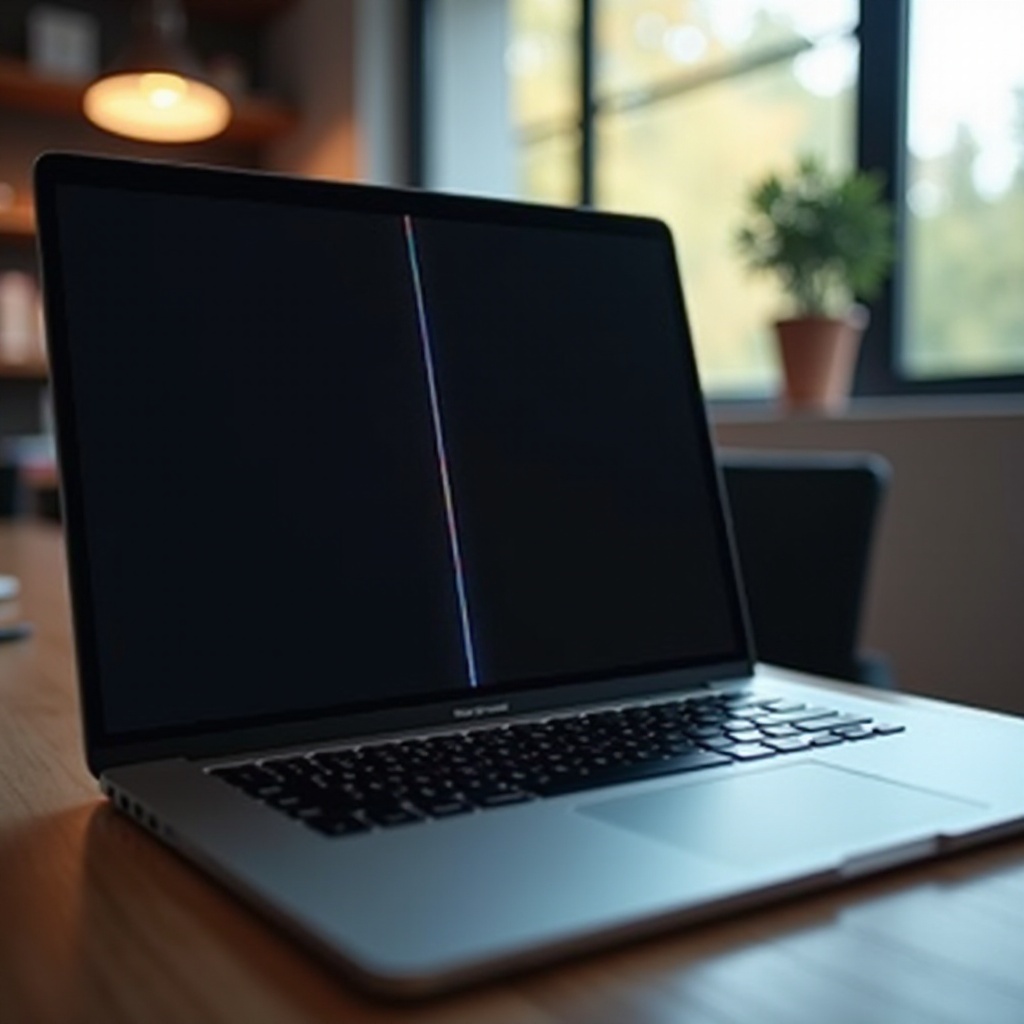
Diagnosing the Problem
Effective diagnosis is the first step toward solving the problem efficiently. Here’s how you can determine whether the problem is hardware or software-related.
- Distinguishing Between Software and Hardware Issues: Begin by rebooting your MacBook Pro in Safe Mode. If the line persists in Safe Mode, it is likely a hardware problem. Otherwise, it may be software-related.
- Tools and Methods for Diagnosis: Use Apple Diagnostics to test for hardware issues. Restart your Mac, pressing and holding the D key while it boots. Follow the on-screen instructions to run the diagnosis and record any error codes for future reference.
Once you determine the cause, you can proceed with the appropriate solutions.
Software Solutions
If your diagnosis reveals a software issue, there are several potential solutions you can try.
- Updating macOS and Software: Ensure that your operating system and applications are up-to-date. Software updates often include patches for previously known display issues. Navigate to System Preferences > Software Update and install any updates available.
- Resetting NVRAM/PRAM: This process can resolve certain display issues. Shut down your Mac, then turn it back on while holding Command, Option, P, and R keys simultaneously for about 20 seconds.
- Booting in Safe Mode: To do this, restart your Mac and hold the Shift key during startup. Safe Mode disables unnecessary software and conducts a startup disk check, which can fix minor software-induced problems.
If these software solutions do not suffice, it suggests a hardware issue that requires a different approach.

Hardware Solutions
Addressing hardware problems can be more complex, involving technical steps or professional assistance.
- Checking Display and Connection Cables: Ensure that the cables connecting the display to the motherboard are secure. You may need to carefully open the MacBook’s back cover to check connections, or better yet, consult a professional if unsure.
- DIY Screen Replacement Options: If you are comfortable with electronics, consider replacing the screen yourself. Purchase a compatible screen and follow reliable online guides carefully; however, be mindful of the risks involved.
- When to Consider Professional Help: Should the above steps not resolve the issue, seeking professional repair service is advisable. Professionals can provide accurate diagnostics and estimates for repair costs.
After resolving the issue, adopting preventative measures can safeguard your device against similar problems in the future.
Preventing Future Screen Issues
Maintaining your MacBook Pro’s health is vital for preventing future issues. Consider these preventative strategies:
- Regular Maintenance Tips: Clean your device’s surface and keyboard regularly to avoid dust accumulation, which can impact internal components negatively. Regularly restart your MacBook to maintain optimal performance.
- Recommended Protective Accessories: Use a durable laptop case to protect against impacts and drops. Screen protectors can prevent scratches and maintain display quality.
Conclusion
By understanding the causes of a single vertical line on your MacBook Pro screen and applying these targeted solutions, you can restore your screen to full functionality. Whether the problem is software or hardware-related, there are structured steps you can take to fix it. Proactively implementing preventative measures will also help ensure your MacBook remains in excellent working condition, reducing the likelihood of future display issues.
Frequently Asked Questions
Can a single vertical line on my MacBook Pro screen be fixed permanently?
Yes, by addressing the root cause, whether software or hardware, you can often achieve a permanent fix.
How much does it cost to repair the MacBook Pro screen?
Repair costs vary from approximately $200 to $600, depending on whether you handle the repair yourself or opt for professional services. Warranty coverage might allow free repairs.
When is it time to replace my MacBook Pro instead of repairing it?
Consider replacing your MacBook Pro if repair costs are near the price of a new device or if it is significantly outdated and prone to further issues.