
Introduction
Adjusting the picture size on your Samsung TV enhances your viewing experience, making movies, games, or sports more enjoyable by displaying them in the appropriate size. This guide provides clear steps and tips on changing the picture size effectively, ensuring optimal screen settings tailored to your preferences.
Accessing Picture Size Settings on a Samsung TV
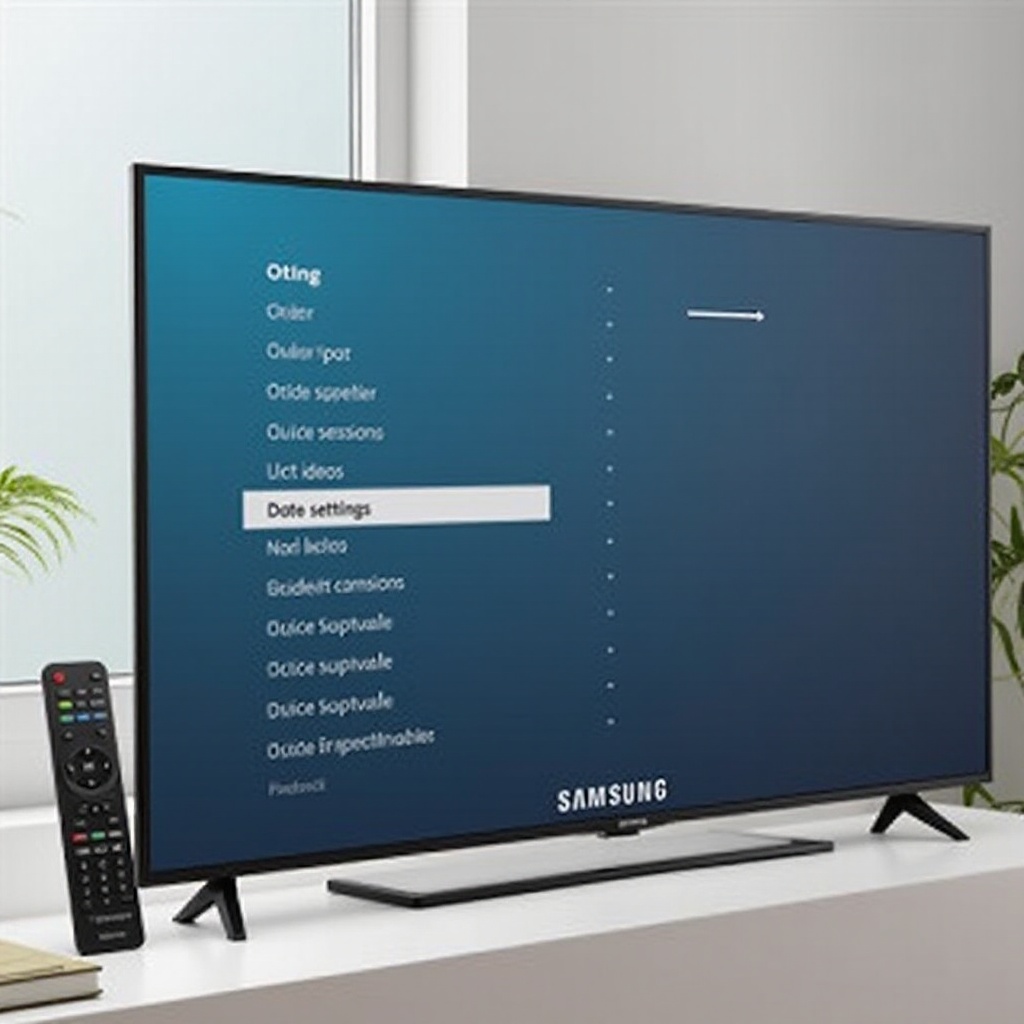
To begin improving your TV’s display, you need to access the picture size settings on your Samsung TV. This task can be handled seamlessly using your remote control and navigating through the on-screen menu.
- Using the Samsung TV Remote:
- Press the ‘Home’ button on your remote control.
- Navigate to the ‘Settings’ menu with the arrow keys.
-
Select ‘Picture’ followed by ‘Picture Size Settings’.
-
Navigating the On-Screen Menu:
- Within the ‘Picture Size Settings’, various options will be at your disposal, allowing for custom configurations designed to suit any media you’re viewing.
Accessing these settings is a crucial first step in exploring all the display possibilities your Samsung TV offers.
Understanding Samsung TV Picture Size Options
With settings accessed, it’s essential to grasp the different picture size options to optimize your TV’s display effectively.
- Standard Picture Sizes:
- 16:9: This default setting suits most modern content, providing widescreen viewing ideal for today’s broadcasts.
-
4:3: More suitable for older programs that predate widescreen technology.
-
Custom Picture Sizes:
- Fit to Screen: Ensures the entire image is visible with no cropping.
- Zoom and Position: Allows further refinement of the image by zooming and adjusting its positioning.
A deeper understanding of these settings enables you to make adjustments that best showcase your content.
Step-by-Step Guide to Changing Picture Size
Armed with knowledge of your options, follow these steps to modify your Samsung TV’s picture size:
- Access the Picture Size Menu:
- Use your remote to open the ‘Settings’ menu.
-
Go to ‘Picture’ and select ‘Picture Size Settings’.
-
Select the Desired Picture Size:
- Scroll through the options available.
-
Opt for ’16:9′ for widescreen content and ‘4:3’ for classic shows.
-
Apply Changes and Adjustments:
- After selecting your preferred size, press ‘Enter’ to confirm.
- Use the ‘Zoom and Position’ feature if the image requires additional tweaks.
Following these steps ensures a tailored viewing experience, enhancing picture clarity and enjoyment.
Troubleshooting Common Picture Size Issues
Sometimes, challenges may arise when adjusting the picture size on your Samsung TV. Here’s how to overcome typical issues:
-
Picture Size Options Not Available:
The options may be grayed out due to the content source. Verify that your HDMI source is configured correctly or consider switching inputs. -
Fixing Aspect Ratio and Distortion Problems:
If the image appears stretched or unusual, try enabling ‘Fit to Screen’ or use ‘Zoom and Position’ to realign the display.
Resolving these issues promptly will maintain the quality of your viewing and provide a seamless experience.
Advanced Tips for Optimizing Picture Quality
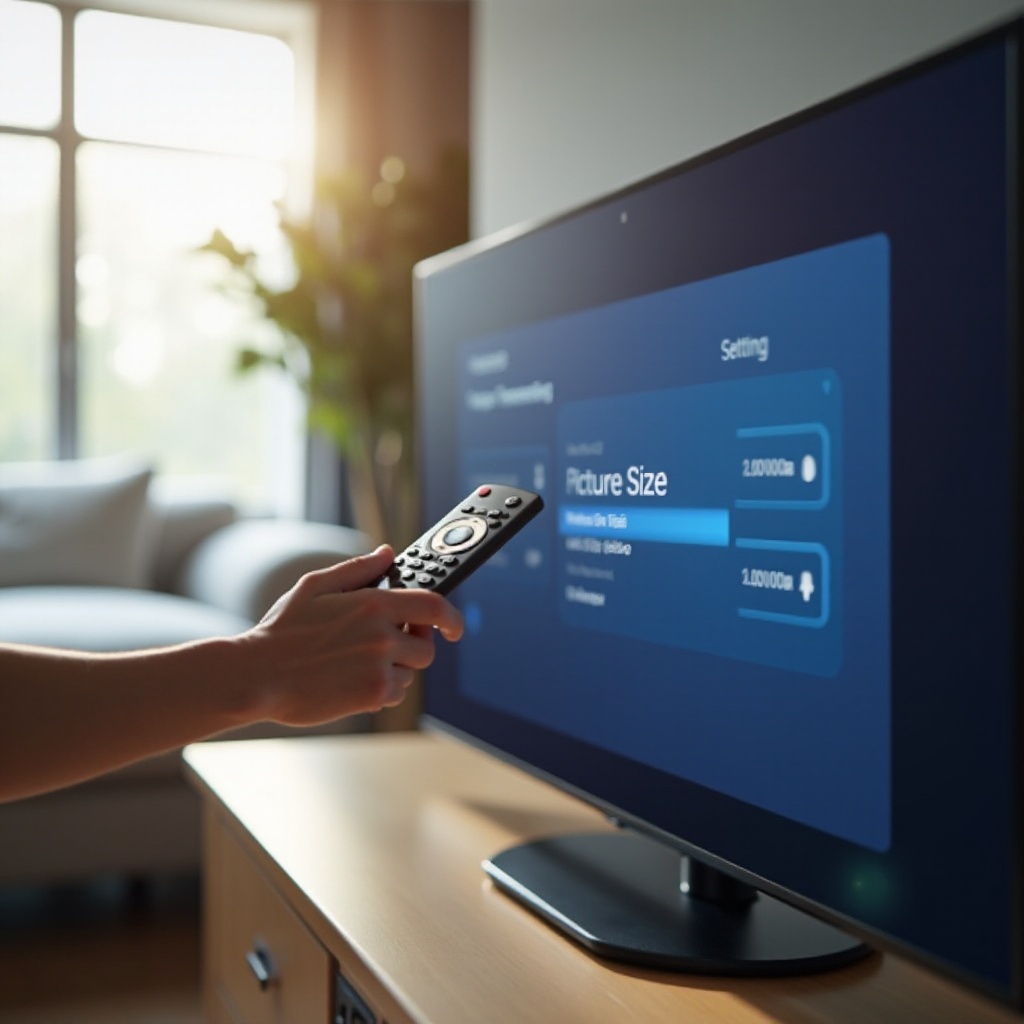
Beyond basic adjustments, Samsung TVs offer advanced settings to further refine your TV’s display quality.
-
Utilizing Samsung’s UHD and HDR Features:
Ensure your TV firmware is updated to fully benefit from UHD and HDR, which deliver increased contrast and vivid color depth. -
Enhancements with Picture Mode Settings:
Experiment with modes such as ‘Movie’, ‘Game’, and ‘Dynamic’, each tailored to optimize different viewing experiences.
Employing these advanced settings will provide a noticeable boost to your visual enjoyment.
Conclusion
By following these guidelines, you can easily adjust the picture size on your Samsung TV to cater to your viewing needs. Remember to explore various settings and make good use of the advanced features seen on Samsung TVs to maximize your viewing potential. With these settings, your screen will deliver clear, vibrant images, no matter the content.
Frequently Asked Questions
How to set picture size for streaming services?
For streaming content that doesn’t fit correctly, use ‘Fit to Screen’ to adjust automatically. Ensure your streaming app is updated for compatibility.
What to do if picture size keeps resetting?
Make sure your TV’s firmware is current, as outdated firmware can cause the settings to reset. Updating your system can help retain changes.
Are picture size settings consistent across all Samsung TVs?
Most models have similar settings, but variations exist. Consult your specific model’s user manual for detailed instructions.