
Introduction
Bluetooth headphones offer an exceptional way to enhance your watching experience by connecting wirelessly to your Samsung Smart TV. The lack of wires means you can enjoy freedom of movement and immersive sound quality without disturbing others in your household. Mastering the connection process is vital to fully utilize this technology.
Understanding Bluetooth Connectivity with Samsung Smart TVs
Samsung Smart TVs feature Bluetooth capabilities to facilitate convenient wireless connections. Familiarizing yourself with how Bluetooth works will enable a smoother setup.
The Basics of Bluetooth Technology
Bluetooth is a standard for wireless data exchange over short distances. It offers seamless connectivity, doing away with cumbersome wires. With Bluetooth headphones, you can connect to devices like Samsung Smart TVs for an unobstructed listening encounter.
Why Use Bluetooth Headphones with a Samsung Smart TV?
Wireless headphones bring multiple advantages when paired with a TV.
– Private Listening: Perfect for late-night shows with no disturbance.
– Enhanced Mobility: Freedom to move around without cord constraints.
– Superior Audio Experience: Enjoy the clarity without background noise.
Recognizing these benefits sets the stage for understanding the pairing process.
Step-by-Step Guide to Pairing Bluetooth Headphones
Correctly pairing your Bluetooth headphones with your Samsung Smart TV is straightforward if you follow the necessary steps. Let’s examine how to do this efficiently.
Checking TV Compatibility and Settings
- Verify Bluetooth Capability: Confirm your Samsung Smart TV supports Bluetooth.
- Access TV Settings: Using the remote, navigate to ‘Settings’.
- Locate Sound Options: Select ‘Sound’ and then ‘Sound Output’.
Ensuring your TV is Bluetooth-ready prepares you for the pairing process.
Pairing Your Headphones: A Step-by-Step Process
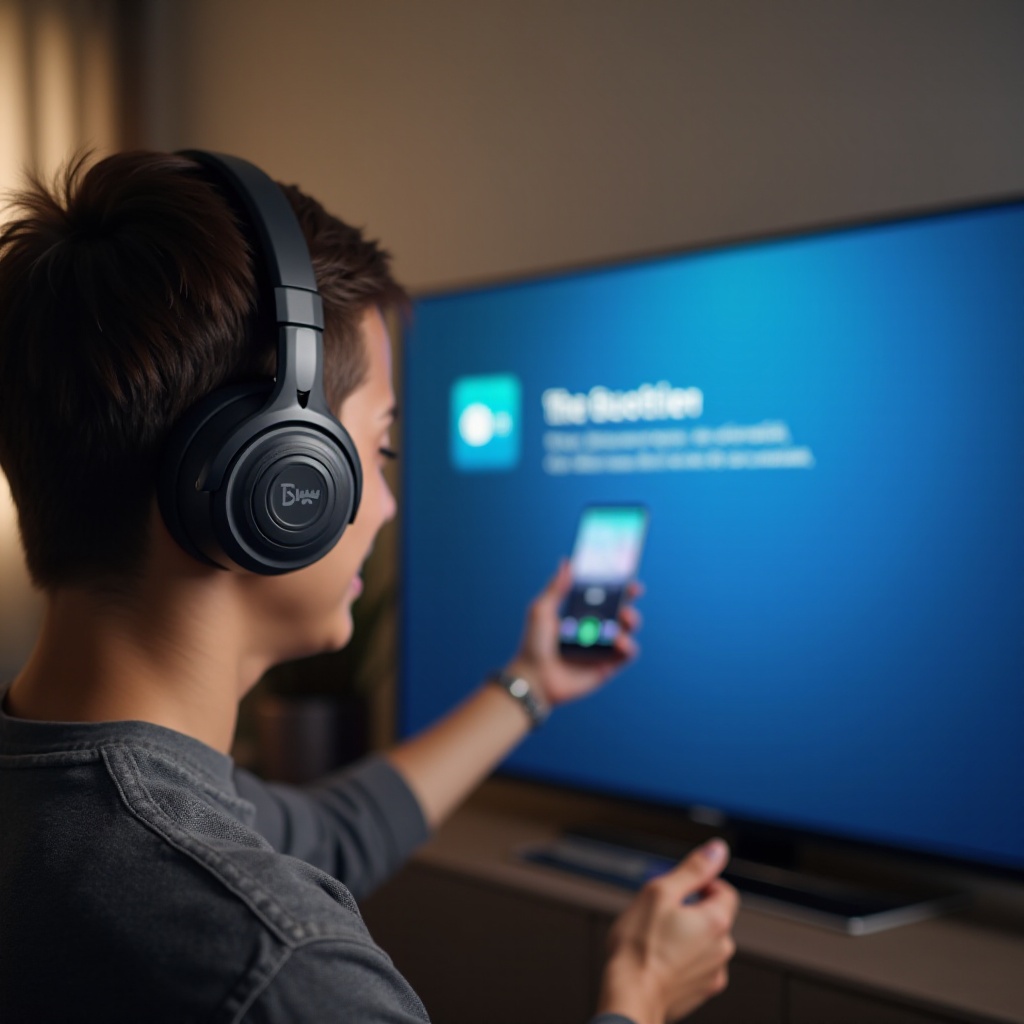
- Activate Pairing Mode: Follow your headphone’s instructions to enter pairing mode.
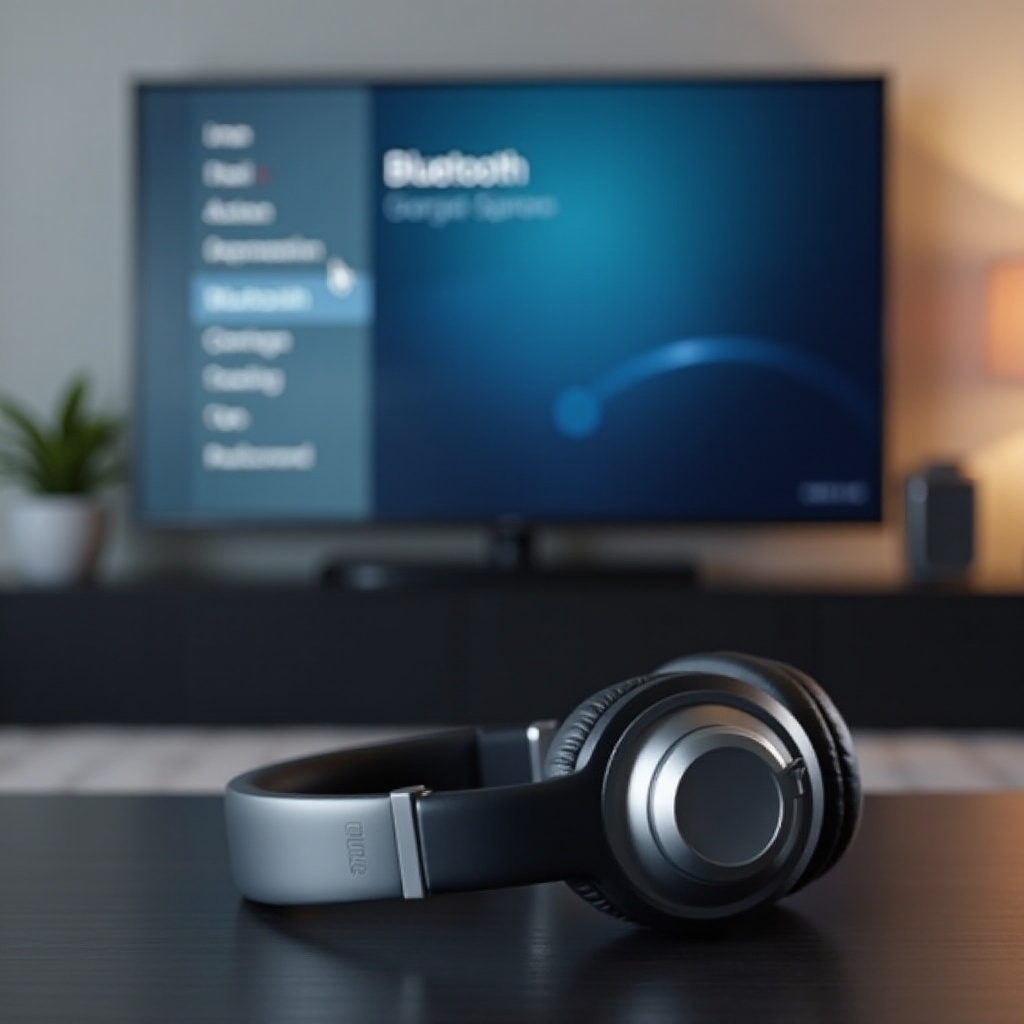
- Choose ‘Bluetooth Speaker List’: On your TV, navigate to this option.
- Select Your Headphones: From the list, choose your headphones and confirm the connection.
Clearing this step leads us to handle some common connection issues.
Troubleshooting Common Issues
If issues arise:
– Restart Devices: Turn off and restart both the TV and headphones.
– Check Battery Levels: Make sure both devices have sufficient charge.
– Remove Interference: Keep other Bluetooth devices away during the pairing.
Resolving these problems ensures a stable connection, hence the importance of choosing suitable headphones follows.
Selection of the Best Bluetooth Headphones for Samsung Smart TVs
Selecting the right Bluetooth headphones can significantly affect your viewing pleasure. Here’s what you need to know.
Key Features to Look For
When choosing headphones, consider:
– Sound Quality: Look for headphones offering superior audio.
– Comfort: Choose models ensuring prolonged comfort with adjustable headbands.
– Battery Life: Opt for long-lasting batteries.
Knowing these attributes will help choose from top models.
Top Recommended Models of 2024
- Bose QuietComfort 35 II: Renowned for noise cancelation and comfort.
- Sony WH-1000XM4: Exceptional sound with extended battery life.
- Sennheiser Momentum 3 Wireless: Perfect for those desiring premium sound.
With the right model in mind, let’s explore enhancing the overall experience.
Enhancing Your Audio Experience
Maximizing the potential of your Bluetooth headphones involves optimizing your Samsung TV’s sound settings.
Optimizing Sound Settings on Your TV
- Adjust Equalizer: Fine-tune settings to suit your preferences.
- Enable Advanced Sound Mode: Use Dolby Atmos for enhanced audio.
By fine-tuning these settings, you can achieve an improved auditory experience.
Tips for Private and Late-Night Viewing
- Use Bluetooth Audio Transmitters: They allow multiple headphones to connect.
- Adjust TV Audio Delay: Make sure audio syncs perfectly with images.
These guidelines ensure a satisfactory viewing and listening journey.
Conclusion
Integrating Bluetooth headphones with your Samsung Smart TV enriches your viewing experience through flexibility and superior sound. By using this guide, you can effortlessly pair your devices and choose the ideal headphones to maximize your home entertainment.
Frequently Asked Questions
Can all Samsung TVs connect to Bluetooth headphones?
Most newer Samsung TV models support Bluetooth. Check your model’s manual for confirmation.
How do I fix audio delay when using Bluetooth headphones?
Utilize your TV’s audio sync settings to adjust the delay until audio and video are aligned.
Is it possible to connect multiple Bluetooth headphones to one Samsung Smart TV?
Yes, a Bluetooth audio transmitter can allow multiple headphones to connect for a shared experience.