
Introduction
Encountering a blank screen when connecting your PS4 to your TV can be frustrating. You’re eager to dive into your favorite game, but the lack of display immediately halts your excitement. This guide will walk you through step-by-step solutions to diagnose and resolve this issue effectively, ensuring you get back to gaming without hassle.
Understanding the Basics
Before diving into troubleshooting, it’s important to understand how your PS4 communicates with your TV. The console transmits video signals through HDMI cables, which the TV then processes and displays. Any disruption in this process could result in a lack of display. This foundational knowledge will help you target specific potential problems more efficiently.
Initial Checks for Display Issues
Here’s where to begin:
1. Confirm both the PS4 and TV are powered on.
2. Ensure the PS4 is fully plugged into a functioning power outlet.
3. Inspect that all cables are firmly connected and in good condition.
4. Verify that your TV is set to the correct input channel.
These initial checks can swiftly eliminate minor connectivity errors before moving on to more detailed troubleshooting.
Verify Connections and Inputs
If the display issue persists, a thorough check of all connections and settings is necessary:
– Check HDMI Cable and Ports: Make sure the HDMI cable is securely connected to both the PS4 and the TV. Try using a different HDMI cable or another HDMI port to eliminate the possibility of a faulty connection.
– Confirm TV Input Settings: Cycle through the TV’s input options to ensure it is set to the correct HDMI input. A frequent mistake is having the TV set to an incorrect input channel.
These verification steps aim to quickly pinpoint any issues related to incorrect connections or settings, helping you get your display back on track swiftly.
Adjusting PS4 Video Output Settings
Incorrect video settings can lead to issues. Adjust your PS4 settings as follows:
– Accessing PS4 Display Settings: From the PS4 main menu, navigate to ‘Settings’ > ‘Sound and Screen’ > ‘Video Output Settings.
– Optimizing for Your TV Model: Choose a resolution that your TV supports; typically, this will be 1080p for HDTVs. Additionally, consider enabling HDCP (High-bandwidth Digital Content Protection) if required by your TV.
By ensuring correct video output settings, you can eliminate common issues, allowing for a seamless signal process.
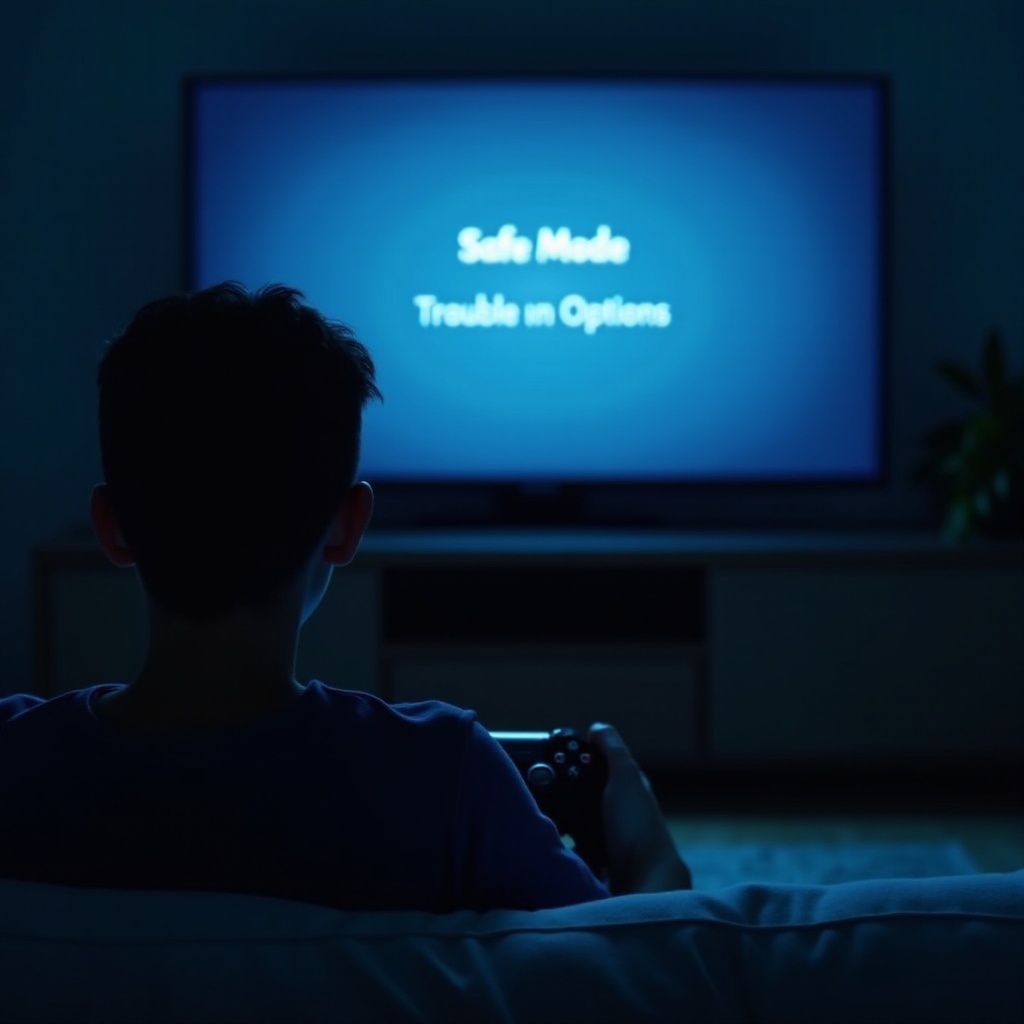
Troubleshooting with Safe Mode
Safe Mode provides powerful options for resolving display issues:
– How to Enter Safe Mode: Turn off your PS4 completely, then hold the power button for about 7 seconds until you hear two beeps, signaling entry into Safe Mode.
– Resetting Video Output Settings: In Safe Mode, select ‘Change Video Output’ to reset your display settings.
This method allows for troubleshooting and resolving problems not addressable in the standard operating mode, such as video output misconfigurations.
Power Cycling Devices
Power cycling can refresh the system and resolve connectivity issues:
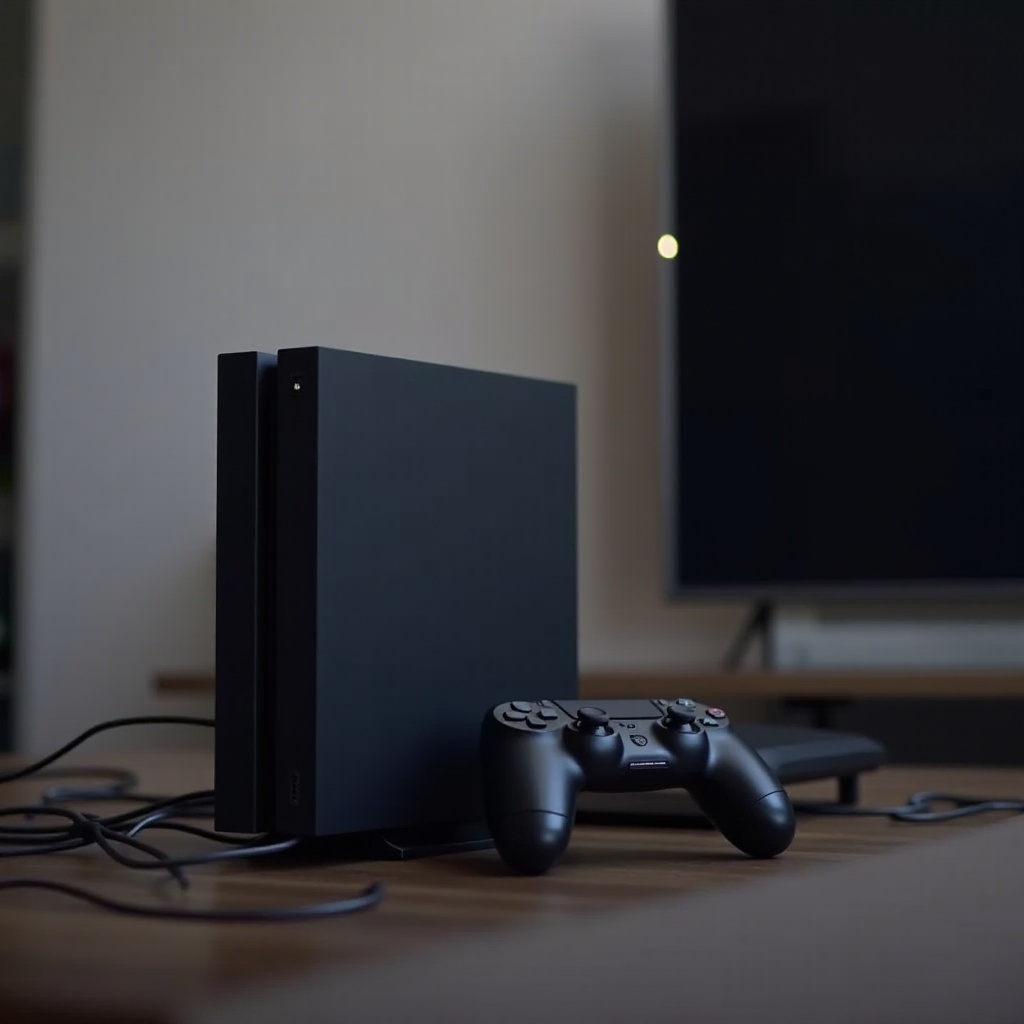
1. Turn off your PS4 and TV.
2. Unplug all cables from both devices.
3. Wait for one minute before reconnecting and powering on the devices.
This technique often resets temporary glitches affecting signal transmission, providing a simple yet effective reset.
Ensuring System Software Updates
Updates play a critical role in system functionality:
– Updating PS4 Firmware: Navigate to ‘Settings’ > ‘System Software Update’ to check and install any updates.
– Benefits of Regular Updates: Updated firmware often includes fixes for bugs and enhances compatibility with newer TV models.
Regularly updating both your PS4 and TV software ensures optimal performance and compatibility, preventing future issues before they arise.
Advanced Troubleshooting Options
If previous steps haven’t resolved the issue, consider advanced solutions:
– Checking for Hardware Issues: Conduct a visual inspection of the PS4 and TV for any physical damage that might affect connection.
– When to Seek Professional Help: If hardware issues are identified or the problem persists despite troubleshooting, contacting professionals or Sony support could be the best course of action.
Sometimes, professional intervention is required to diagnose or repair hardware elements beyond everyday troubleshooting.
Conclusion
By systematically following this comprehensive guide, you’re likely to resolve most PS4 display issues. From verifying connections to resetting video output settings, remember to approach each step with patience for the best results.
Frequently Asked Questions
How can I tell if my HDMI cable is faulty?
Check for any physical damage and try using the cable with another device. If issues continue, consider replacing the cable.
What should I do if my TV doesn’t recognize the PS4?
Ensure the PS4 is on, cables are connected correctly, and the TV is set to the correct input. Consider using Safe Mode to reset configurations.
Can the PS4 Safe Mode help with display issues?
Yes, Safe Mode provides options to reset settings and can resolve many display-related problems effectively.