
Introduction
When your Mac displays the ‘Service Battery’ alert, it signals that your device’s battery may require attention or even replacement. Promptly addressing this issue is vital for preserving your Mac’s performance and extending its overall lifespan. In this guide, we will delve into the meaning of this warning, methods to diagnose the issue, and actionable steps to effectively resolve it.
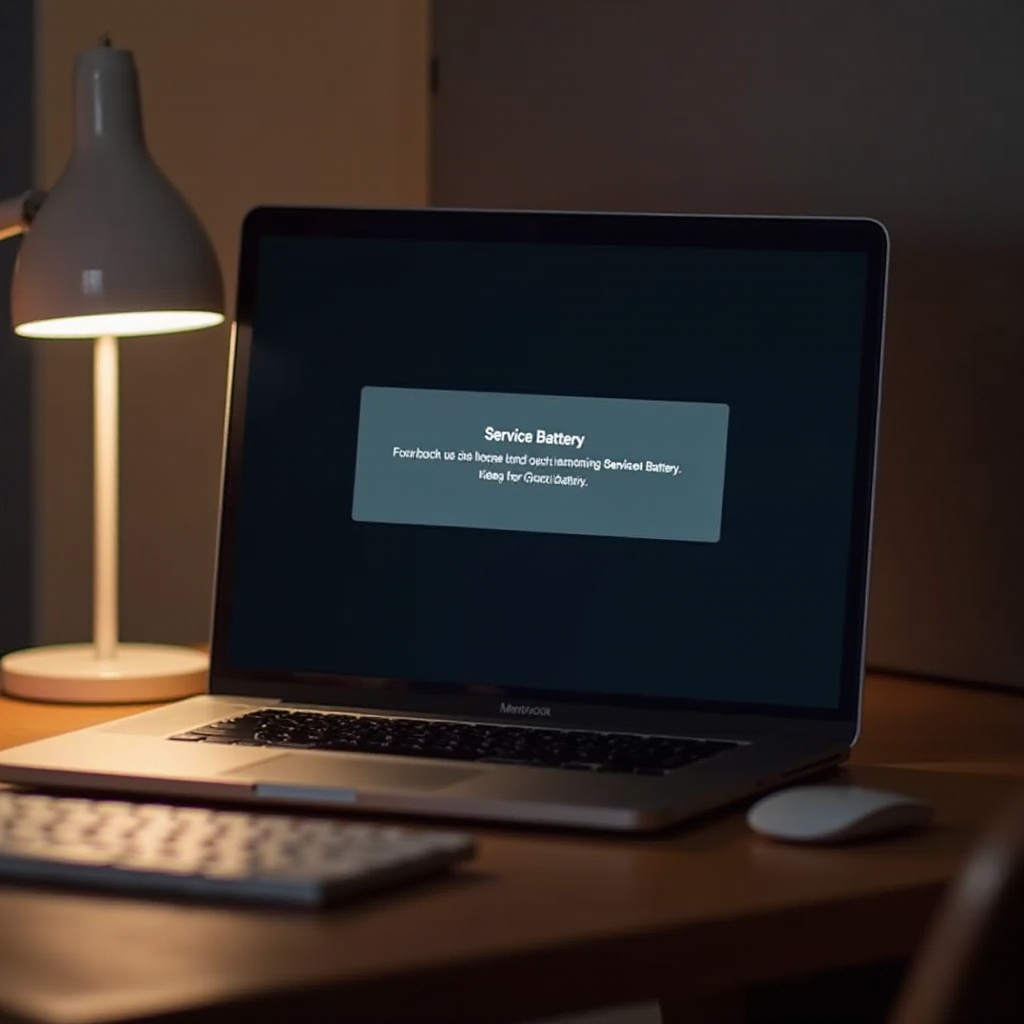
What Does the ‘Service Battery’ Warning Mean?
The ‘Service Battery’ warning is an indicator of the current state of your Mac’s battery health, suggesting potential attention or servicing.
-
Interpreting Battery Health Notifications: When you encounter the ‘Service Battery’ alert, it implies your Mac has detected suboptimal battery function, possibly due to age, a high cycle count, or inherent defects.
-
Causes of the ‘Service Battery’ Alert: A variety of factors may trigger this warning, such as:
- Battery Age: Natural degradation over time reduces capacity.
- High Cycle Count: An elevated number of charge cycles can indicate significant wear.
- Software Glitches: Incorrect software settings can sometimes produce false alerts.
Once you’ve understood the cause of the warning, it is crucial to move on to diagnosing the specific issue impacting your battery.
Diagnosing Your Mac’s Battery Issue
An accurate diagnosis of your Mac’s battery issue is the next essential step before implementing further solutions.
-
Using macOS Built-in Tools: Utilize your Mac’s built-in tools like System Information for detailed insights into battery health and cycle count. This can be accessed by selecting the Apple logo, ‘About This Mac,’ and then ‘System Report.
-
Third-party Diagnostic Tools: Comprehensive apps like CoconutBattery provide valuable insights into your battery’s condition, history, and capacity fluctuations, assisting in determining if a replacement or minor fix is needed.
With a clear diagnosis, it becomes evident why ignoring such a warning could jeopardize your Mac’s performance.
Impact of Ignoring the ‘Service Battery’ Alert
Failing to address a ‘Service Battery’ warning can adversely affect your device.
-
Consequences for Mac Performance: A deteriorating battery can lead to slowness, unexpected shutdowns, or an inability to hold a charge, alongside the risk of overheating.
-
Potential Long-term Damage: Continuous negligence can harm internal components, potentially resulting in expansive and costly repairs.
Acknowledging these warnings promptly is imperative to protect your device’s functionality, hence the necessity to adopt specific corrective measures as soon as possible.

Steps to Resolve the ‘Service Battery’ Warning
Taking swift, appropriate action can help restore your Mac’s efficiency and prevent further complications.
- Immediate Actions You Can Take:
- Restart Your Mac: Often a simple restart can clear any temporary issues.
-
Reset SMC (System Management Controller): This is especially helpful if persistent hardware issues are noticed.
-
Update macOS and Battery Apps:
- Keep Software Updated: Regularly updating macOS and pertinent apps can resolve underlying bugs negatively impacting battery performance.
- Battery Re-calibration: Perform a complete full charge, then discharge cycle, if possible, to properly recalibrate your battery.
If these resolutions do not successfully clear the warning, professional assistance may then be warranted.

When to Seek Professional Help
Understanding the appropriate time for expert intervention can save you both time and further damage to your device.
-
Recognizing Hardware Issues: Immediate professional help should be sought if your Mac continues facing serious power problems or visible battery damage persists.
-
Finding Certified Repair Services: Opt for Apple Authorized Service Providers to secure high-quality service and genuine parts, ensuring you read online reviews and verify certifications before proceeding.
With the problem addressed, maintaining optimal battery health becomes the next logical priority to avoid recurrence.
How to Maintain Optimal Battery Health
Ensuring flawless battery care is critical for prolonging the longevity of your Mac.
- Daily Battery Maintenance Tips:
- Avoid Overcharging: Disconnect the charger when your battery reaches 100% to prevent overcharging.
-
Adjust Energy Saver Preferences: Use energy-saving settings to conserve power and avert overheating.
-
Strategies for Extending Battery Lifespan:
- Routine Battery Monitoring: Regularly track cycle count and capacity.
- Environmental Management: Ensure your Mac operates in cool spaces to avoid overheating and potential battery swelling.
By focusing on continuous battery care, you can enhance battery lifespan and improve device performance on an ongoing basis.
Conclusion
Addressing the ‘Service Battery’ warning on your Mac is crucial for maintaining its smooth operation and reliability. Through a proper understanding of the issue, precise diagnosis, and executing preventive as well as corrective strategies, you can ensure your device continues to function at an optimal level over an extended period.
Frequently Asked Questions
How long should a Mac battery last before showing a ‘Service Battery’ alert?
A typical Mac battery should last 3-5 years before the service battery alert may appear, depending on usage and cycle count.
Can I use a Mac with the ‘Service Battery’ warning safely?
You can use it temporarily, but prolonged use without addressing the warning can lead to performance issues and potential damage.
Does replacing the battery void my warranty?
Replacing the battery through unauthorized services can void your warranty. Always seek Apple Authorized Service Providers for replacements.