
Introduction
Pairing a Fitbit with your Apple phone can significantly enhance your fitness monitoring capabilities, allowing you to access a wealth of health-related insights with unparalleled convenience. This integration brings together Fitbit’s advanced fitness tracking features and the robust ecosystem of Apple’s technology. This guide will provide you with detailed steps on setting up your Fitbit, optimizing its use, and integrating it effectively with your Apple phone, ensuring that you maximize all available tools for a healthier lifestyle.
Understanding Fitbit’s Compatibility with Apple Phones
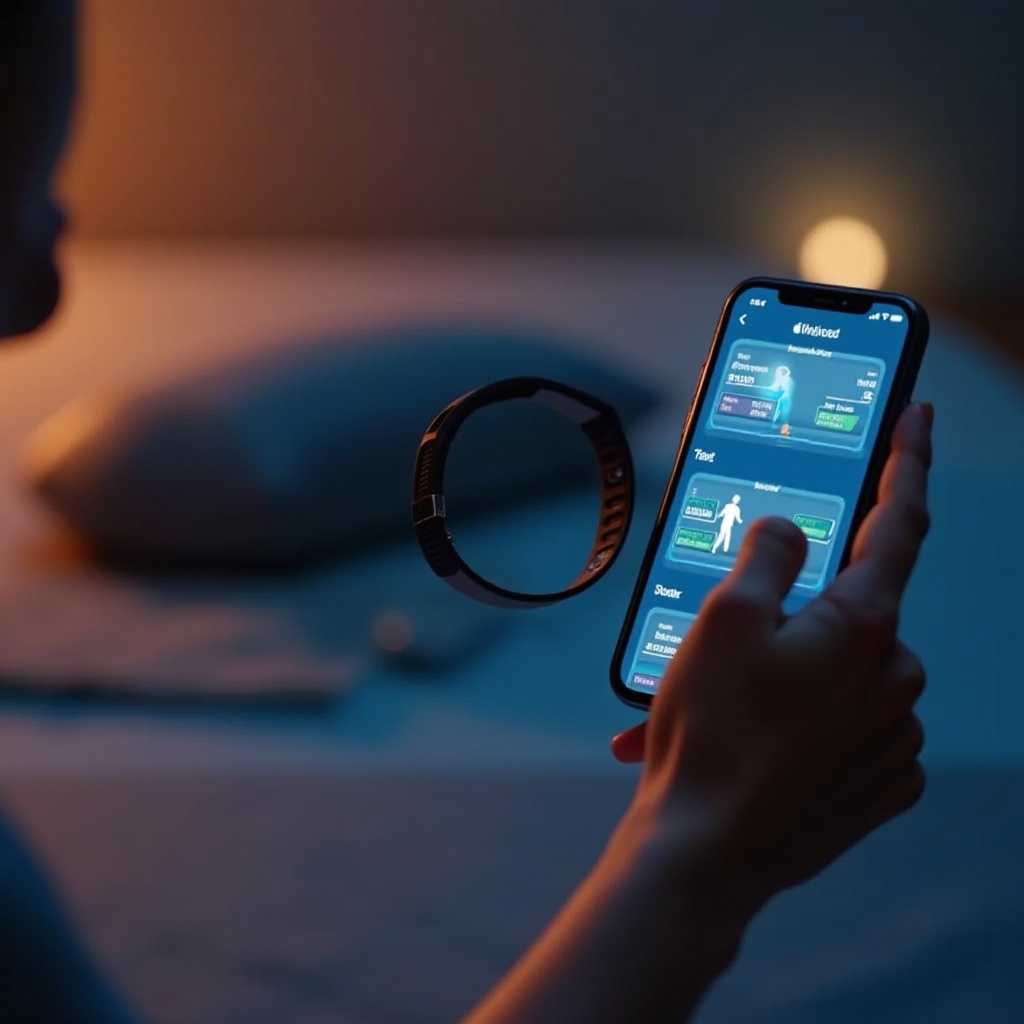
Fitbit models such as the Inspire, Charge, Versa, and Sense series are fully compatible with Apple phones, offering an array of functionalities designed to keep you informed and motivated. Before pairing, ensure that your Fitbit device is up-to-date with the latest firmware and that your iPhone has the most recent iOS update. Bluetooth compatibility is essential, as it facilitates communication between your devices.
This partnership allows users to access notifications, fitness tracking, and health analytics right on their wrists. The compatibility ensures a low-maintenance but effective solution for health monitoring. With this foundational understanding, setting up your devices can be smooth and hassle-free.
Setting Up Your Fitbit with an Apple Phone
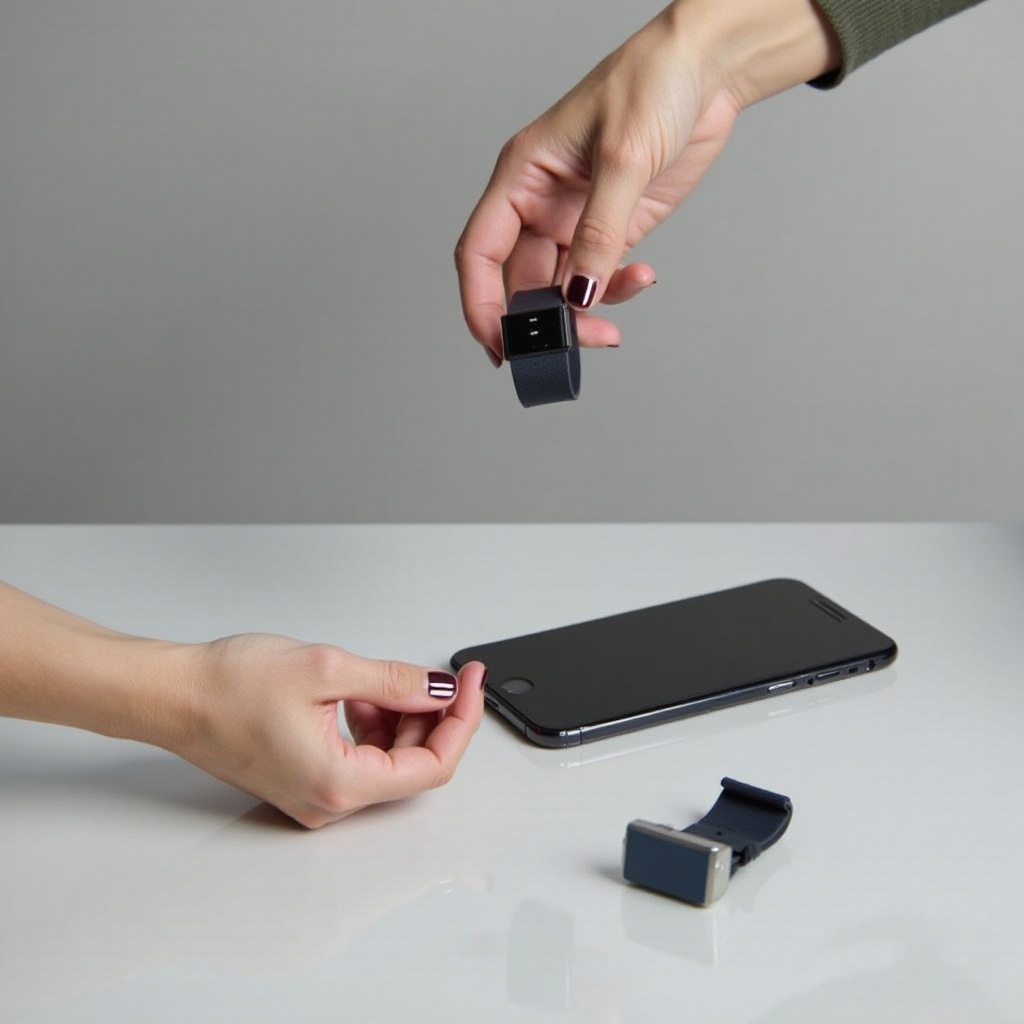
Setting up your Fitbit with an Apple phone is straightforward. Follow these steps to ensure a successful pairing:
- Download the Fitbit app from the App Store and install it.
- Enable Bluetooth on your Apple phone to allow the connection to be established.
- Open the Fitbit app and either log in or create a new account if this is your first time.
- Select ‘Set Up a Device’ in the app and choose your Fitbit model from the list.
- Follow the on-screen instructions to pair the device, which may involve entering a code shown on your Fitbit.
- Customize your settings like notification preferences and fitness goals through the app interface.
If you encounter issues, ensure both your phone and Fitbit are adequately charged and restart both devices. If problems persist, refer to Fitbit’s support site for further troubleshooting advice.
Maximizing Fitbit Features on iOS
With the setup complete, utilizing the Fitbit app on iOS can revolutionize how you monitor your health. Some standout features include:
- Dashboard Overview: A succinct view of steps taken, calories burned, and recent exercise data.
- Comprehensive Activity Tracking: Monitor daily activity metrics such as floors climbed and distance traveled.
- Real-Time Heart Rate Monitoring: Access live and historical heart rate data to evaluate your fitness journey.
- Sleep Analysis: Understand your sleep patterns and get personalized tips to enhance your sleep quality.
Leveraging these tools ensures you’re not just tracking data but also making informed decisions about your health and lifestyle.
Integrating Fitbit with the Apple Ecosystem
One of the strengths of using a Fitbit with an Apple phone is their seamless integration within the Apple ecosystem. You can sync your Fitbit data with Apple Health, providing a comprehensive overview of all your health metrics.
- Sync with Apple Health: Enable this feature in the Fitbit app by navigating to ‘Settings’ and toggling the Apple Health sync feature. This allows for a consolidated view of your fitness data.
- Utilize Third-Party Apps: Apps like MyFitnessPal or Strava can elevate your tracking experience with cross-platform data sharing, enabled through Fitbit’s app integration.
- Receive Notifications: Configure your Fitbit to receive calls and texts, ensuring you’re alerted even when your phone isn’t in hand.
This synergy offers a holistic view of your health, combining Fitbit’s detailed analytics with Apple’s streamlined interface.
Tips for Getting the Most Out of Your Fitbit on an Apple Phone
To fully leverage the Fitbit-Apple phone integration, consider the following tips:
- Tailor Notifications: Customize notifications to only receive essential updates, minimizing disruptions and maximizing focus.
- Set Realistic Goals: Establish achievable daily and weekly targets within the Fitbit app to maintain motivation and progress.
- Participate in Community Challenges: Engaging with Fitbit’s community features provides motivation through competition and social support from fellow users.
Adopting these strategies ensures that your Fitbit and Apple phone pairing does more than gather data; it inspires daily activity and healthier habits.
Conclusion
Connecting your Fitbit to an Apple phone offers a powerful alliance between sophisticated health tracking and intuitive technology. Through simple setup steps, feature optimization, and seamless integration with the Apple ecosystem, your devices are poised to support an enhanced health journey. Embrace this potent combination to track, improve, and sustain a healthier lifestyle effortlessly.
Frequently Asked Questions
How do I sync my Fitbit with my Apple phone?
To sync, download the Fitbit app, enable Bluetooth, and follow the app’s pairing instructions.
Is the Fitbit app free on Apple devices?
Yes, the Fitbit app is free to download from the App Store, with optional premium features for a subscription fee.
Can I receive calls and texts from my Apple phone on my Fitbit?
Yes, once paired, you can enable call and text notifications to receive alerts directly on your Fitbit.