
Introduction
When your Insignia TV refuses to connect to Wi-Fi, it can disrupt your streaming plans and create frustration. This guide aims to help you solve these connectivity issues by exploring possible causes and offering practical solutions. Let’s dive into the reasons your Insignia TV might face Wi-Fi challenges and how to resolve them.
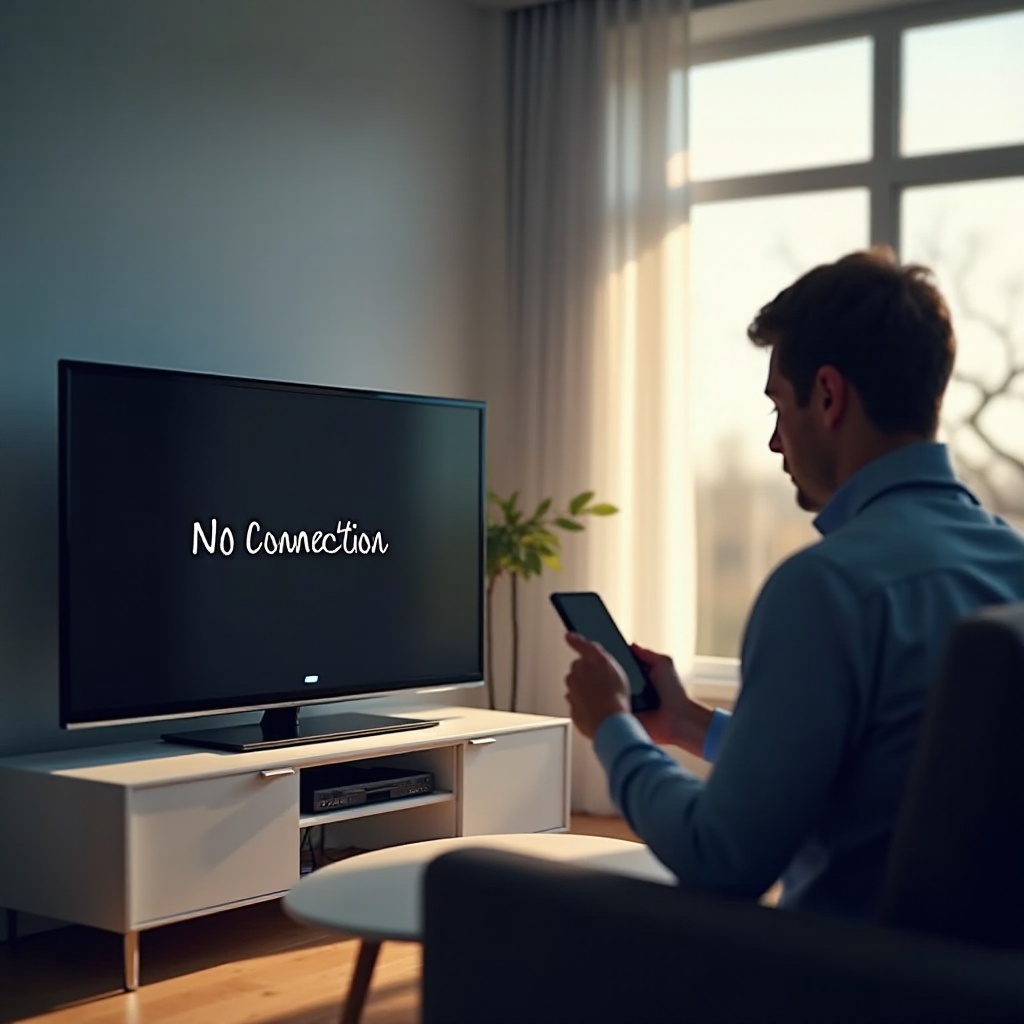
Common Reasons for Wi-Fi Connection Issues
Understanding why your Insignia TV might not be connecting to Wi-Fi is crucial. Several factors can contribute to this problem:
-
Network Compatibility: Make sure your Wi-Fi network operates on a frequency supported by your Insignia TV. Older TV models might not support new network frequencies.
-
Signal Interference: Electronic devices and physical obstructions can weaken the Wi-Fi signal, making connection difficult.
-
Incorrect Network Credentials: Ensure you’ve entered the correct network name and password to prevent connection errors.
Once you’ve identified potential causes for the connection issue, you can conduct some initial checks to try and resolve them quickly.
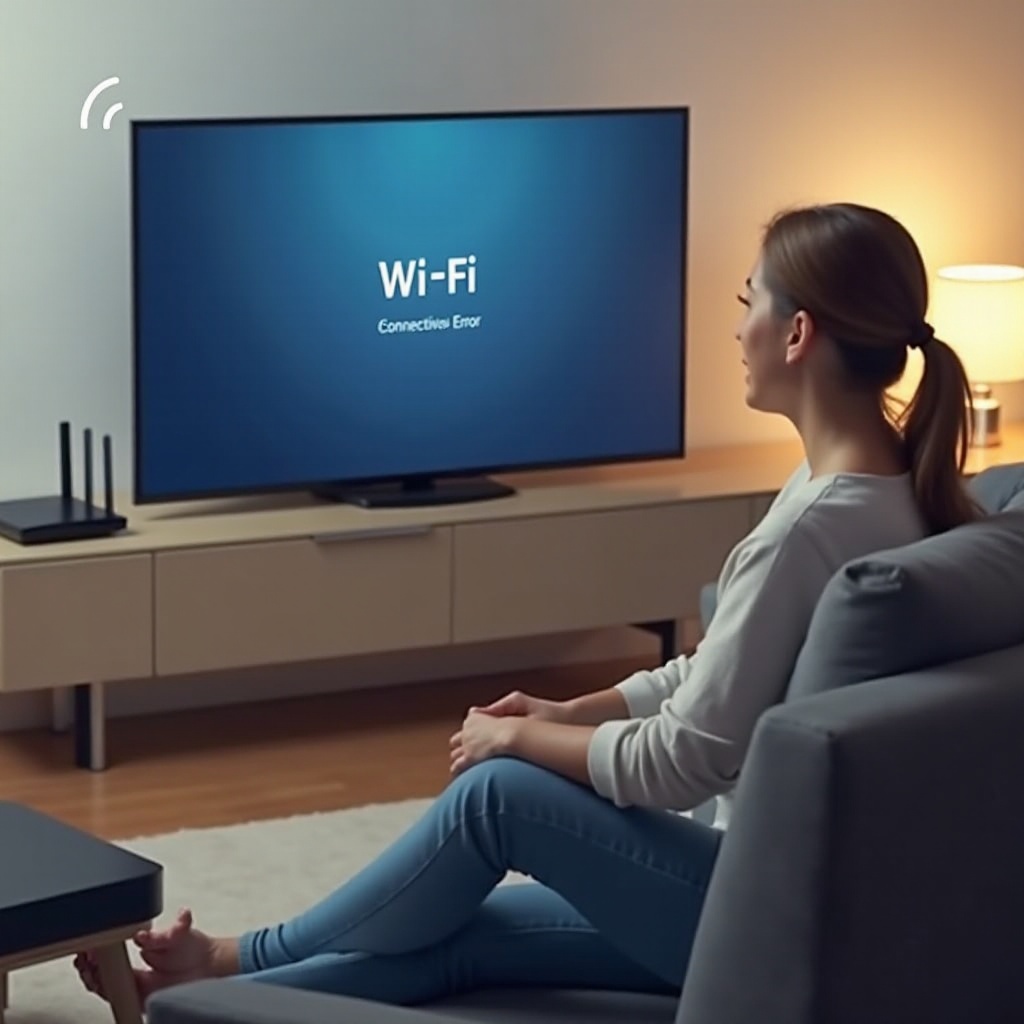
Preliminary Checks Before Troubleshooting
Before delving into troubleshooting, perform these basic checks:
-
Verify Network Availability: Check if other devices in your home can connect to the Wi-Fi, ruling out a network outage.
-
Inspect Router Placement: Ensure your router’s location is optimal for signal distribution and free of obstructions.
-
Assess Signal Strength: Use your TV’s network settings to gauge signal strength. Weak signals can contribute to connectivity issues.
These checks can often resolve simple issues. If your TV still doesn’t connect, it’s time to try some detailed troubleshooting steps.
Step-by-Step Troubleshooting Guide
If the problem persists, follow these troubleshooting steps to resolve your Insignia TV connectivity issues:
-
Restart Insignia TV and Router: Power cycling both devices can clear temporary system glitches that might hinder the Wi-Fi connection.
-
Recheck Wi-Fi Settings on TV: Go to your TV’s network settings and confirm that you’ve selected the correct network and input the correct password.
-
Disconnect and Reconnect Network: Forget your Wi-Fi network on your TV, then reconnect it by entering the necessary credentials.
If these steps do not solve the problem, consider applying more advanced solutions.
Advanced Troubleshooting Methods
For issues that persist after basic troubleshooting, consider these advanced techniques:
-
Update TV Firmware: A firmware update can resolve bugs and improve compatibility with wireless networks. Check for updates in your TV’s settings.
-
Adjust Router Settings: Access your router’s configuration settings. Consider changing the network mode or security settings if other devices aren’t affected.
-
Factory Reset of Insignia TV: As a last resort, a factory reset may fix persistent issues, though it will clear your personal settings.
These advanced methods should only be used if basic steps fail. Let’s explore alternative ways to connect your TV if Wi-Fi difficulties continue.
Alternative Connection Options
If Wi-Fi isn’t working for your setup, consider these alternatives:
-
Using a Wired Connection: An Ethernet cable offers a stable and often faster connection compared to Wi-Fi.
-
Exploring Wi-Fi Extenders: If distance is a problem, Wi-Fi extenders can boost signal strength, enhancing connectivity.
These alternatives provide an Internet connection, ensuring your TV remains functional despite Wi-Fi issues.
When to Contact Insignia Support
Sometimes, problems may require professional assistance:
-
Persistent Connectivity Issues: If none of the above steps work, the problem may be more profound than a simple configuration error.
-
Hardware Malfunction Indicators: Problems such as frequent disconnections or other unexplained issues might indicate a hardware fault.
In these cases, it’s best to contact Insignia support for professional troubleshooting and repair options.

Conclusion
Maintaining a stable Internet connection on your Insignia TV is essential for enjoying online content. By employing the steps in this guide, most connectivity issues can be resolved. However, don’t hesitate to seek professional help if problems persist. Enjoy seamless streaming once your connection is restored.
Frequently Asked Questions
How can I boost my Wi-Fi signal for better TV connectivity?
Consider rearranging your network setup, using Wi-Fi extenders, or upgrading to a dual-band router to enhance signal strength.
Why does my Insignia TV keep losing the Wi-Fi connection?
Frequent disconnections could be due to network interference, weak signal strength, or outdated TV firmware.
Can software updates resolve Wi-Fi connectivity issues on my Insignia TV?
Yes, updating your TV’s firmware can fix bugs and improve network compatibility, enhancing overall connectivity.