
Managing your files on the iPad can significantly impact how you use your device, whether for personal or professional purposes. Apple has continually updated iPadOS to make file management more intuitive, allowing users to navigate documents, media, and other files with ease. This guide will demonstrate how to effortlessly find and organize files on your iPad, utilizing the available tools and features to their fullest potential.
Introduction
Mastering file management on your iPad is key to optimizing your device’s functionality. The introduction of the Files App revolutionized how users can handle documents, enhancing accessibility and organization. By exploring and applying the various features of the Files App, alongside powerful search functionalities and cloud-based solutions, users can create a seamless file retrieval process. This comprehensive guide will walk you through using the Files App, harnessing search tools, and employing cloud storage effectively.

Understanding the Files App
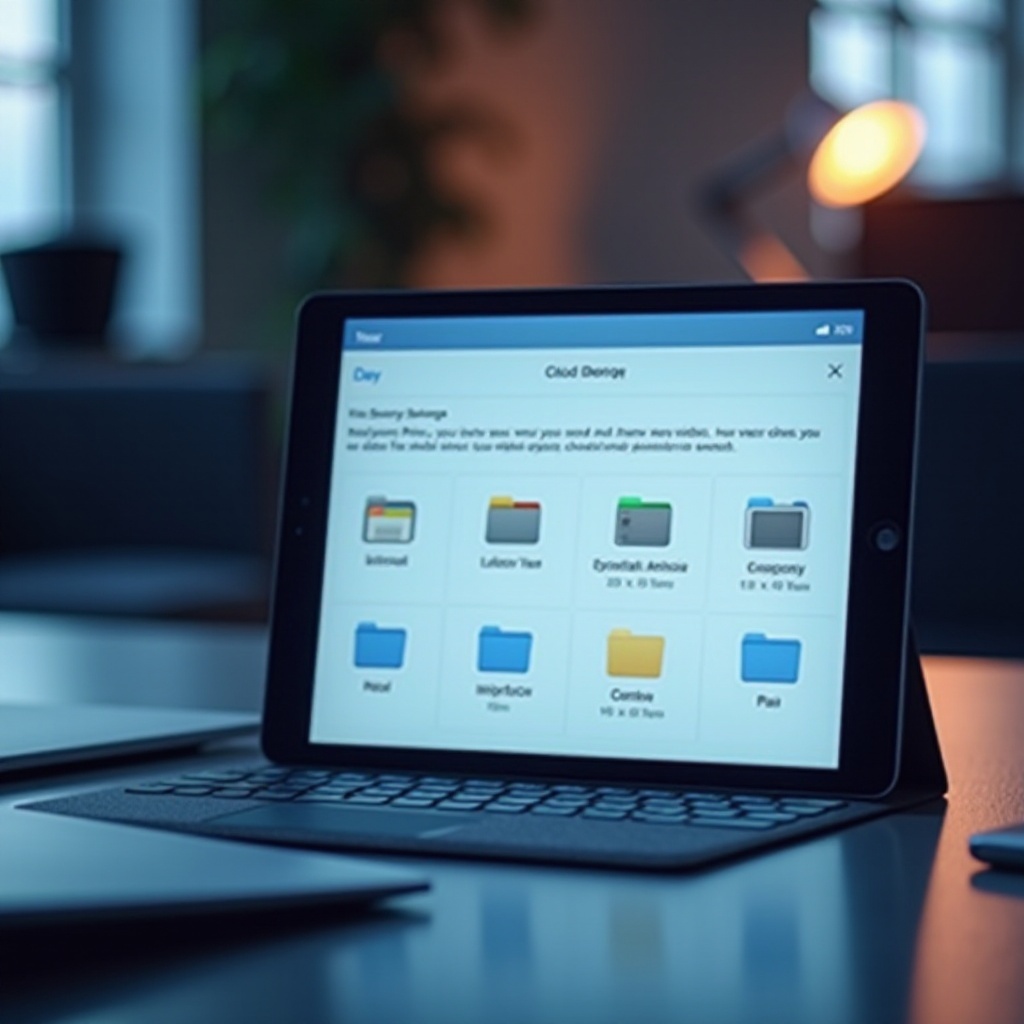
The Files App acts as the central hub for managing all types of files on your iPad. A solid understanding of its interface and features is essential for effective file management.
-
Navigating the Interface: Opening the Files App reveals various locations such as ‘On My iPad,’ ‘iCloud Drive,’ and other linked services like Google Drive or Dropbox. The sidebar offers quick access to these locations, facilitating easy navigation between them.
-
Managing Files and Folders: Organize your documents by creating folders, which can be nested for better categorization. To create a new folder, navigate to your desired location, pull down the screen, and select ‘New Folder.’ Drag files into these folders to keep your documents sorted.
-
Key Features: Utilize the ‘Recent’ tab to access recently opened documents quickly. The ‘Browse’ section allows you to search for files by type or tag, offering a structured approach to file management.
Understanding how to organize and access files within the Files App lays the groundwork for seamless file retrieval.
Using Search Features to Find Files
Finding specific files is simplified with built-in search functionalities designed to save you time and effort.
-
Files App Search: Within the Files App, use the search bar at the top to enter file names, types, or tags. As you type, suggestions populate, aiding in quick file location.
-
Spotlight Search: Swipe down on the Home screen to use Spotlight Search. Enter keywords related to the file you need. Spotlight can search beyond files, including apps and email, making it versatile.
-
Siri Commands: Enlist Siri’s help by using voice commands like ‘Find my budget spreadsheet.’ Siri can assist in locating your files effortlessly.
These search tools work together to provide a comprehensive solution for quick file access across your iPad.

Managing and Organizing Files
A methodical approach to file organization promotes efficiency and clarity.
-
Creating Structure: Establish a clear folder hierarchy with categories like ‘Work,’ ‘Personal,’ or ‘Travel.’ This allows for straightforward document retrieval.
-
Consistent Naming: Use descriptive, consistent names for files, such as naming a photo ‘London_2024_01’ instead of ‘IMG_1234,’ for easy future reference.
-
Using Tags and Filters: Color-coded tags in the Files App offer another layer of organization. Filters available in the ‘Browse’ section help narrow down searches by file type.
A well-organized system ensures you spend less time searching and more time being productive.
Utilizing Cloud Storage for File Management
Harnessing cloud storage allows seamless file access across devices, forming an essential component of iPad file management.
-
iCloud Drive: Start by enabling iCloud via Settings > [Your Name] > iCloud > iCloud Drive. This service syncs your files automatically, ensuring they’re accessible and updated on all devices.
-
Integrating Other Clouds: Google Drive, Dropbox, and OneDrive can be linked under the Locations section in the Files App. Install the respective apps, log in, and gain easy access to your online storage.
-
Best Practices: Regular backups to cloud services protect against data loss. Monitor storage limits and regularly clean out unneeded files to maintain space.
Leveraging cloud storage solutions simplifies device transition and ensures your files are always at your fingertips.
Troubleshooting Common File Issues
Despite efficient systems in place, occasional challenges in file management might arise.
-
Finding Missing Files: If a file is misplaced, check if it was moved or deleted. Use the Files App’s search tool to locate items quickly.
-
Syncing Problems: Ensure a stable Wi-Fi connection if syncing with iCloud or other services; check sync settings on your device for any discrepancies.
-
Resolving Common Problems: Restart the iPad to resolve minor glitches. If a file won’t open, try accessing it on another app or device to diagnose the issue.
Handling potential issues with these troubleshooting tips ensures that disruptions are minimal and quickly remedied.
Conclusion
Mastering file management on the iPad requires a good grasp of the Files App and other supportive tools. By integrating effective search techniques and utilizing cloud storage, you achieve a streamlined workflow. With these strategies, finding and organizing files becomes second nature, letting you focus more on your tasks and less on logistics.
Frequently Asked Questions
How do I find a downloaded PDF on my iPad?
Check the ‘Downloads’ folder in the Files App or use the search function to locate PDFs by name or keywords.
Can I use third-party apps for better file management?
Yes, apps like ‘Documents by Readdle’ enhance file management and integrate well with the Files App.
What are the best practices for organizing files on my iPad?
Consistently categorize files using folders, apply clear naming conventions, and use color-coded tags.