
Introduction
Beats headphones have captured the hearts of audio enthusiasts for their style and sound quality. Yet, like any tech gadget, they can encounter issues, such as the perplexing flashing white light. This indicator can signify various problems, typically around connectivity or battery life. Deciphering this light is crucial for perfecting your listening experience. In this article, we’ll delve into what this flashing indicator means and how to tackle it effectively to restore seamless audio playback.
Understanding Beats Headphones Light Indicators
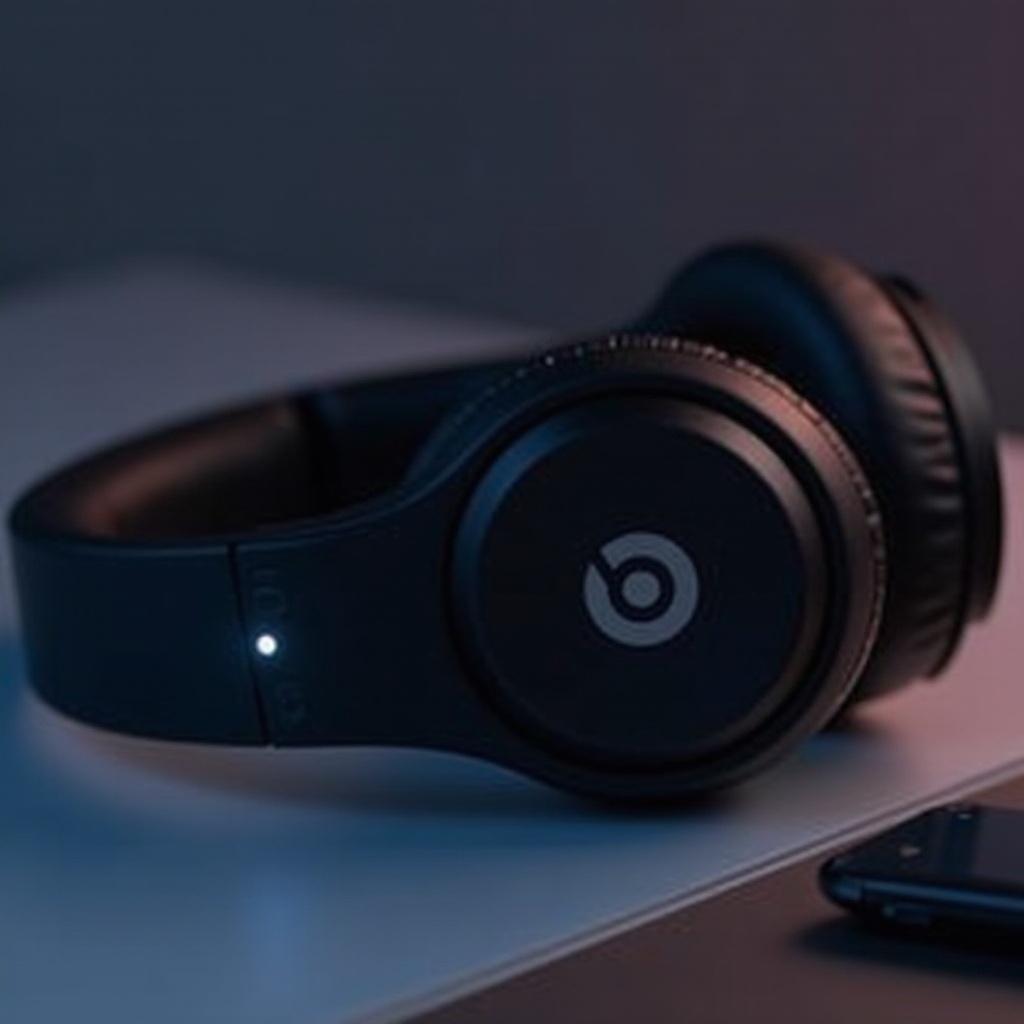
Beats headphones use LED lights for signaling statuses, providing a window into their operational state and any underlying issues. These lights not only guide users but also act as warning signals.
-
Common LED Signals and Their Meanings: Beats headphones display different colors and patterns of light to indicate their state. Common signals include solid lights for power and pairing, while blinking lights can indicate low battery or connection challenges.
-
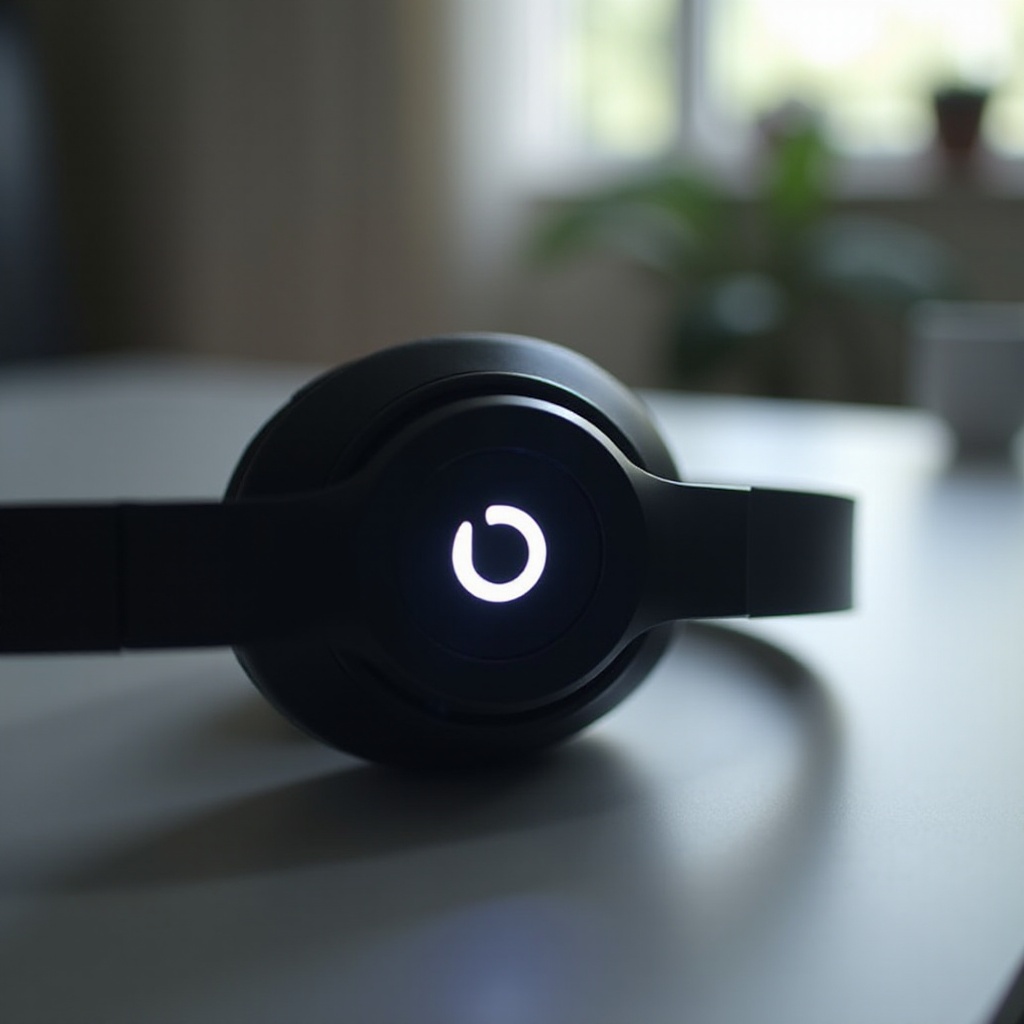
Specific Interpretation of the Flashing White Light: A flashing white light typically indicates that the headphones are attempting to pair or there is a connectivity issue. Recognizing this specific light pattern helps in quickly identifying the source of the problem and finding a solution.
With these insights, we can identify potential root causes, preparing us for targeted troubleshooting.
Common Causes of the Flashing White Light
Understanding why your Beats headphones flash a white light helps in addressing the problem effectively.
-
Battery and Charging Challenges: Often, a flashing white light means the battery is running low. It’s essential to check charging cables and adapters, ensuring they’re functioning properly.
-
Bluetooth Connectivity Issues: This light can signal problems in maintaining a stable Bluetooth connection. Such issues may arise due to interference, physical obstructions, or software glitches.
-
Firmware and Software Updates: Keeping your device’s software updated is crucial for optimal performance. Outdated firmware can lead to connectivity problems and flashing lights.
After identifying these causes, we can move toward solutions that are both practical and immediate.
Effective Troubleshooting Steps
Addressing the flashing white light requires a set of precise actions to troubleshoot and resolve the issue.
- Basic Reset of Beats Headphones: A quick reset can solve minor connectivity problems.
- Disconnect all devices connected to your headphones.
- Press the power button and hold it for about 10 seconds.
-
Wait for the LED to flash, indicating a reset.
-
Advanced Factory Reset Techniques: For persistent problems, a factory reset may be necessary:
- Power on the headphones and press the power button along with the volume down button.
-
Release the buttons when the LED blinks, signaling a return to factory settings.
-
Ensuring Device Compatibility: Double-check that your headphones are compatible with the device in question.
- Remove previous pairings and retry connecting your device, ensuring minimal interference.
If the flashing white light persists after these steps, it might be time to consider further professional assistance.
When to Seek Professional Help
If troubleshooting steps still leave you with the frustrating white light, professional help may be required.
-
Signs Indicating the Need for Expert Assistance: Should the light keep flashing or if you’ve noticed any additional technical issues like audio distortion, contacting a professional is advisable.
-
Utilizing Beats Support and Warranty Options: Reach out to Beats support for guidance and to explore warranty options for repair or replacement.
While DIY fixes often work, persistent issues might need an expert touch to restore full functionality.
Preventive Measures for Avoiding Future Issues
Preventive care is vital to keep your Beats headphones in good condition and avoid recurring problems.
-
Proper Maintenance and Care Techniques: Clean your headphones regularly and inspect them for any physical damage.
-
Best Practices for Charging and Storage: Use certified charging accessories and avoid overcharging the battery. Store your headphones in a safe, dry location when not in use.
By following these simple tips, you can ensure the longevity and performance of your Beats headphones, minimizing the chances of troubleshooting issues in the future.
Conclusion
A flashing white light on your Beats headphones doesn’t need to spell trouble when understood correctly. With the right knowledge, resolutions are within reach, making your listening experience as smooth and enjoyable as ever. If all else fails, remember that professional help is just a call away, ready to assist when persistent problems arise.
Frequently Asked Questions
Why do my Beats headphones keep disconnecting?
Interference or an outdated firmware may cause this issue. Ensure there are no interference sources nearby and update the firmware regularly.
How can I update the firmware on my Beats headphones?
Download the Beats app, connect your headphones, and follow the on-screen instructions to install any available updates.
What should I do if my Beats headphones won’t turn on?
First, ensure it’s fully charged and the charger is working properly. If it still doesn’t turn on, perform a reset or contact support.